Batch Mode vs Folder Mode for ISO Creation
Choose the right Batch ISO Creator workflow before turning Windows folders into ISO files: one controlled folder, one free test, or a repeatable batch run.
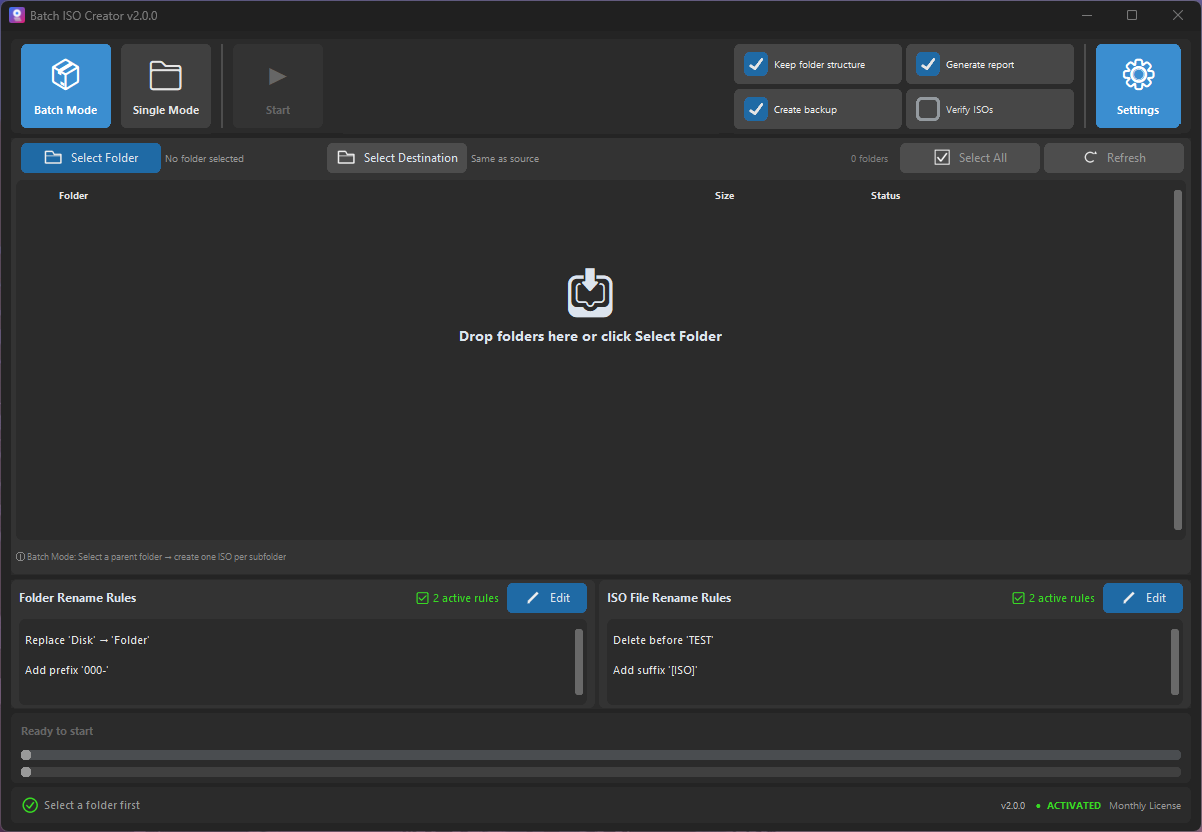
If you are comparing folder-to-ISO tools, the most useful first question is not which button creates an ISO. It is whether the job is a one-folder task or a repeatable folder set. That choice decides whether Folder Mode or Batch Mode will save more time.
Short answer: use Folder Mode when you want to create or test one ISO from a specific folder. Use Batch Mode when a parent folder contains many subfolders and each one should become its own ISO with consistent settings, names, logs, and reports.
A good workflow is to test one representative folder first, mount the result, check the structure and names, then scale to Batch Mode only when the sample output is correct.
Quick decision table
| Situation | Best mode | Reason |
|---|---|---|
| You need one clean ISO from one folder | Folder Mode | It keeps the job focused and avoids setting up a larger batch. |
| You want to test the app before a bigger run | Folder Mode | Free mode allows 1 ISO creation per app session, enough for a realistic sample. |
| You have a parent folder full of project folders | Batch Mode | The value is creating one ISO per subfolder without repeating setup manually. |
| You need consistent output names | Either mode | Rename rules can clean folder and ISO names before output is finalized. |
| You need evidence of what ran | Batch Mode | Progress, logs, and reports matter more as the folder set grows. |
Use Folder Mode for a controlled ISO
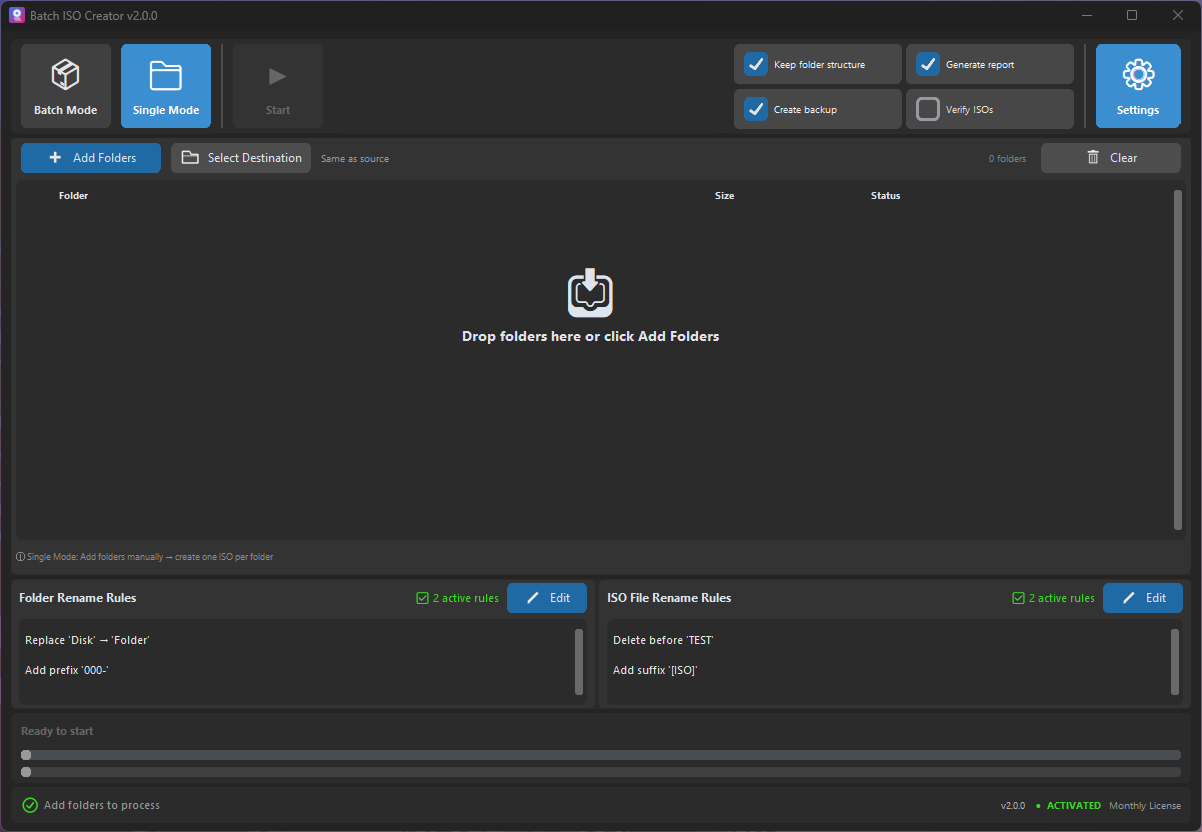
Folder Mode is the better starting point when you already know the folder you want to convert. Select the folder, choose the destination, review the ISO settings, and create a single output. This matches the way many Windows users think about a folder-to-ISO converter: one folder in, one ISO out.
It is also the safest first step when you are not sure about names, source structure, or compatibility settings. A representative folder can reveal problems before a full batch run starts. Mount the result, inspect the virtual drive, and decide whether the structure is ready.
Use Batch Mode when repetition is the problem
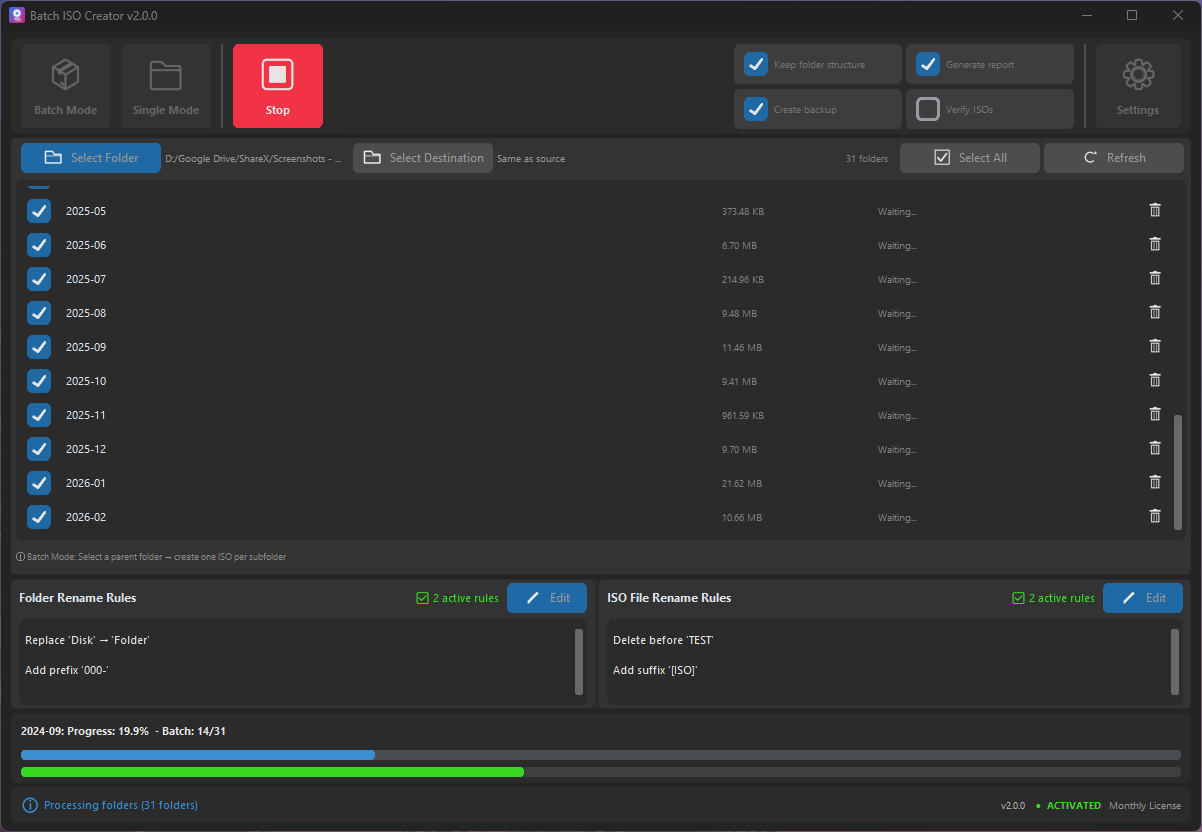
Batch Mode is for the moment the task stops being a single ISO and becomes a set. If you have release folders, course modules, driver packs, client deliverables, training labs, or monthly archive folders, repeating the same setup by hand is where mistakes appear.
Batch Mode helps keep the workflow predictable: add folders, apply the same ISO settings, use the same naming logic, monitor progress, and keep logs or operation reports with the final output. If your goal is one ISO per subfolder, this is the mode that matches the job.
For a deeper walkthrough, see how to create one ISO per folder on Windows. If you are still comparing tool options, the best folder-to-ISO converter guide explains what to look for before choosing a workflow.
Free mode is useful for the first test
Batch ISO Creator has a practical free mode: ISO Mounting is free, and you can create 1 ISO per app session. That makes Folder Mode useful for testing the workflow before deciding whether the larger job needs unlimited ISO creation.
Do not treat the test as a throwaway. Choose a folder that represents the real job: nested paths, long names, version numbers, copied client labels, and files that should be easy to find after mounting. If that sample looks right, the batch run is less risky.
- Pick one representative folder. Include normal files, nested folders, and the naming patterns you expect in the real set.
- Create one ISO in Folder Mode. Use the free session to confirm the destination, label, and basic settings.
- Mount the ISO. Check what a recipient will see, not only whether the file exists.
- Fix names before scaling. Add rename rules if the output looks messy or inconsistent.
- Move to Batch Mode. Once the sample is right, process the larger folder set with the same decision logic.
Where rename rules fit
Mode choice decides how many folders you process. Rename rules decide how clean the output will be. That matters in both modes because a technically valid ISO can still be painful to use if names are inconsistent, duplicated, or hard to scan.
Batch ISO Creator supports rename rules for folder and ISO names, including case conversion, pattern support, prefix, suffix, insert, delete, and serialization. Serialization can number folder and ISO names at the beginning, end, or a specific position, while keeping numbering synchronized when the processing list changes.
| Before | Rule idea | After |
|---|---|---|
| client release final final | Case conversion and delete duplicate text | Client_Release_Final |
| DriverPack Lenovo June | Prefix and pattern cleanup | WIN11_DriverPack_Lenovo_June |
| Training Module | Serialization at the beginning | 001_Training_Module |
If naming consistency is the main issue, read how to standardize ISO file names with rename rules before running a large batch.
Common mode mistakes
The first mistake is using Batch Mode too early. If the source folder is messy, a batch run only repeats the mess faster. Test one representative folder first, especially when the output will be shared outside your PC.
The second mistake is staying in Folder Mode too long. If you are creating the same kind of ISO again and again, manual repetition becomes the risk. At that point, Batch Mode is not just faster; it is easier to review because the run has a single setup, visible progress, and a clearer report trail.
The third mistake is judging the ISO only by file creation. Mount the result, inspect the virtual drive, and check whether the folder structure and names make sense. A post-creation check catches problems before you archive, upload, or send the file.
Recommended workflow
For most Windows folder-to-ISO work, the cleanest approach is simple: start with Folder Mode, then scale with Batch Mode. This avoids overbuilding a one-folder job while still giving you a path to repeatable output when the folder set grows.
- Use Folder Mode for one folder, one free test ISO, or a small controlled job.
- Use Batch Mode for one ISO per subfolder, repeated archive sets, releases, training kits, driver packs, and client deliverables.
- Use rename rules when folder or ISO names need to be standardized before output.
- Use logs and reports when the final ISO set needs evidence of what ran.
- Mount one finished ISO before trusting the whole workflow.
Test One Folder, Then Batch the Full Set
Download Batch ISO Creator to create one ISO in free mode, mount it for inspection, and move to Batch Mode when repeated Windows folder-to-ISO work needs clean names, logs, and reports.
FAQ
Should I use Batch Mode or Folder Mode to create an ISO?
Use Folder Mode for one controlled folder or a small manual test. Use Batch Mode when a parent folder contains many subfolders that should become ISO files with the same workflow.
Can I test the workflow before creating a full batch?
Yes. Batch ISO Creator free mode lets you create 1 ISO per app session, which is enough to test a representative folder before scaling the workflow.
Do rename rules work in both modes?
Yes. Batch ISO Creator supports rename rules for folder and ISO names, including case conversion, pattern support, prefix, suffix, insert, delete, and serialization.