How to Create One ISO per Folder on Windows
If you have a parent folder full of projects, releases, training packs, or archive sets, the job is rarely just creating an ISO. The real job is creating one ISO per folder, keeping the output readable, and proving the run completed cleanly.
Creating one ISO from one folder is easy to understand. Creating fifty ISO files from fifty folders is where the workflow starts to matter. A generic ISO utility can still do the technical job, but it often makes you repeat the same steps over and over: choose a folder, choose an output name, start the job, wait, rename the result, then do it again.
Batch ISO Creator exists for the moment that repetition becomes the cost. Instead of treating every folder as a separate project, you point the app at the folder set, choose the folders you want to process, apply output settings once, and let the run create the ISO files in a controlled sequence.
Best fit: Use this workflow when each subfolder should become a separate ISO image, such as software releases, driver packs, client deliverables, offline lab kits, or long-term archives.
What "one ISO per folder" means
In a clean batch workflow, the parent folder is only the container. The subfolders inside it are the real jobs. If your source folder looks like this:
D:\ISO Source
|-- Client A - Onboarding Kit
|-- Client B - Onboarding Kit
|-- Driver Pack Lenovo T14
|-- Training Lab Week 01
the intended output is usually this:
D:\ISO Output
|-- CLIENT_A_ONBOARDING_KIT.iso
|-- CLIENT_B_ONBOARDING_KIT.iso
|-- DRIVER_PACK_LENOVO_T14.iso
|-- TRAINING_LAB_WEEK_01.iso
The value is not only that the ISO files exist. The value is that they are named consistently, stored in the right place, and easy to verify after the batch finishes.
Why Batch Mode is the right starting point
Batch ISO Creator includes Folder Mode for individual folder jobs, but Batch Mode is the main tool when you want one ISO per folder. The app can show available folders, let you select or deselect items, and process the selected set without rebuilding the same configuration for every folder.
| Workflow step | Manual ISO utility | Batch ISO Creator |
|---|---|---|
| Select folders | Usually one source at a time | Use a parent folder, drag and drop, or select the folders you want |
| Output naming | Often typed or fixed manually | Use folder names plus optional rename rules for cleaner ISO names |
| Destination | Chosen for each job | Use source, custom destination, or maintained destination structure |
| Review | Check files manually | Use progress, status, logs, and optional reports |
Step-by-step workflow
- Prepare a parent folder. Put every folder you want to convert under one clear source directory. Keep unrelated ZIPs, old ISO files, and temporary files outside that parent folder.
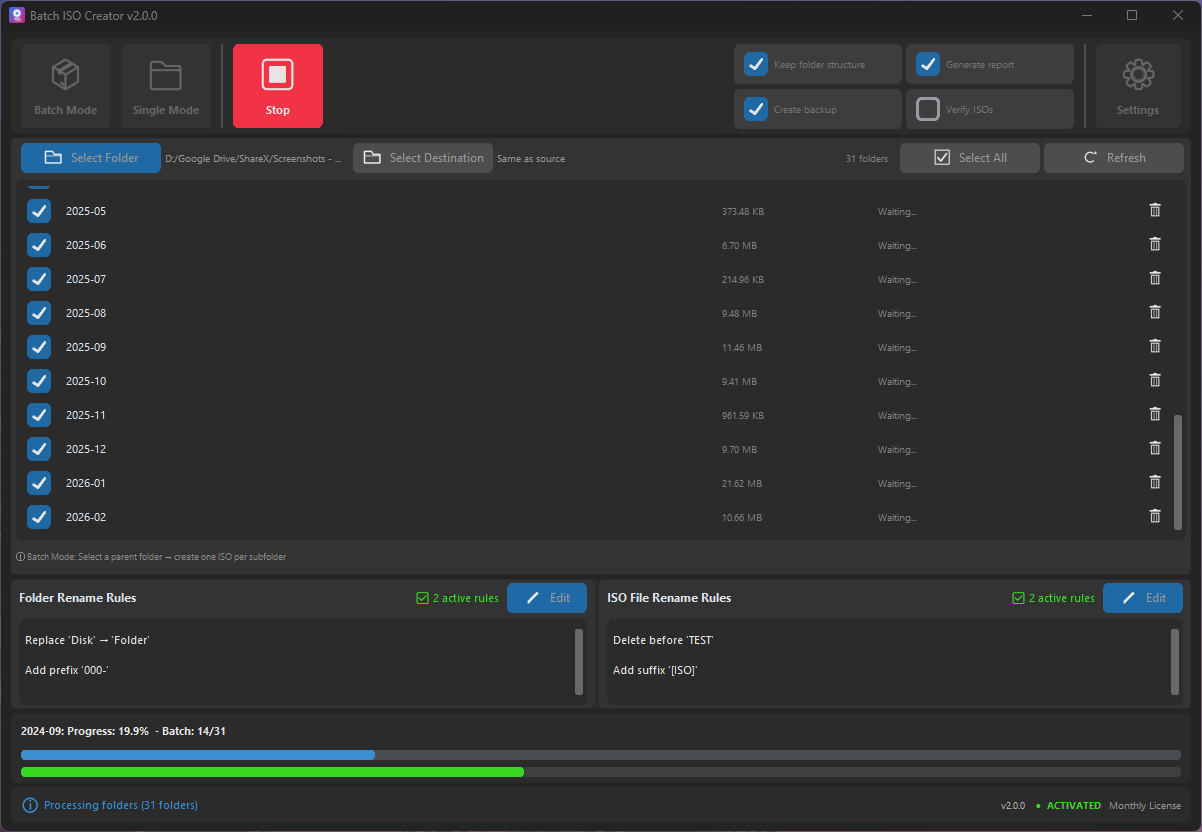
- Open Batch Mode. Use the batch workflow when the goal is one ISO per folder. Drag folders into the app or choose the source folder from the interface.
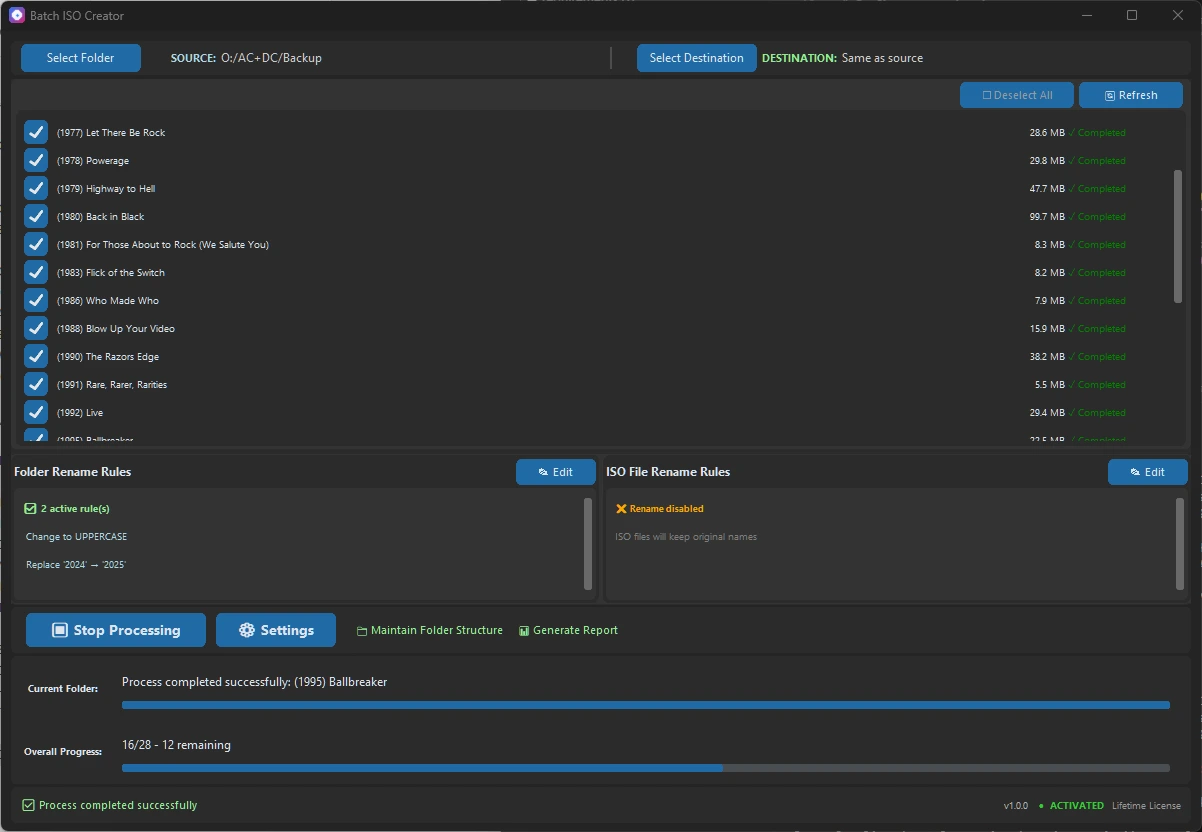
- Select the folders to process. Use Select All for a full run, or deselect folders that are not ready. This is useful when a large parent directory contains drafts and finished folders together.
- Choose destination behavior. Decide whether output goes beside the source data, into a custom destination, or into maintained subfolders such as
D:\Output\FolderName\FolderName.iso. - Apply rename rules if needed. Use rules before the final deliverables are handed off. Case conversion, replace, remove, regex, prefix, and suffix rules are especially useful for batch output.
- Run a small test first. Process two or three folders, mount one ISO with Windows, and confirm the internal structure and output naming are correct.
- Run the full batch and keep the report. When reports are enabled, the report becomes a simple record of what was processed and where the results were saved.
Where rename rules fit
Rename rules are the difference between technically finished output and output that looks ready to ship. Batch ISO Creator separates folder rename rules and ISO file rename rules, so you can decide whether the folder names, the generated ISO names, or both should be cleaned.
For example, a folder named Client A - Onboarding Kit can become CLIENT_A_ONBOARDING_KIT.iso by combining a case rule with replace rules. A release folder named app.build.2026.05.22 can become APP_BUILD_2026_05_22.iso. If you need a client code, add a prefix. If you need a channel or date marker, add a suffix.
When this pays for itself
This is a buying decision more than a technical puzzle. If you only need one personal ISO, any small utility might be enough. If you need a folder library converted cleanly, the repeated clicks, manual renaming, and uncertainty around results are the real cost. Batch ISO Creator is priced for that situation: affordable enough for a one-month project, and useful enough to keep around for recurring archive or release work.
Turn a Folder Set into Clean ISO Files
Download Batch ISO Creator when one-folder-at-a-time tools are slowing down a real batch job. Use Batch Mode, rename rules, progress, and reports to create output you can hand off with confidence.
FAQ
Can Batch ISO Creator create one ISO per folder?
Yes. Batch Mode is designed around a parent folder workflow where each selected folder can become its own ISO file.
Do I need to rename the folders first?
Not always. You can prepare names manually, or use Batch ISO Creator rename rules to clean folder and ISO names as part of the workflow.
Can I choose where the ISO files are saved?
Yes. You can use the source location or choose a custom destination, and you can decide whether to maintain a destination folder structure.