Windows ISO File Name Rules Before You Create ISOs
A practical checklist for folder names, ISO names, volume labels, Joliet Long, and rename rules before creating Windows-friendly ISO archives.
Windows ISO file name problems usually show up late. The folder looks fine in File Explorer, but the ISO run exposes a long path, a confusing output name, a duplicated version string, or a label that does not match what the user will mount later.
The safer approach is to treat naming as part of ISO preparation. Before you convert folders to ISO files, check the source folder names, output ISO names, internal volume labels, filesystem option, and final destination. That checklist is especially important when you are creating one ISO per folder from a parent directory.
Short answer: use simple Windows-safe ISO names, keep labels shorter than file names, enable the right ISO filesystem options for the files inside the folders, and apply rename rules before output instead of cleaning a finished batch by hand.
The four names that matter
An ISO job has more than one name. Treating them as the same thing is a common source of messy output. A project folder name can be descriptive. An ISO file name should be compact enough to store, search, and send. A volume label should be short enough to display cleanly when mounted. A report or log name should make the run easy to audit later.
| Name | Where it appears | What to check |
|---|---|---|
| Source folder name | File Explorer and the batch list | Remove duplicates, unclear dates, and accidental suffixes. |
| ISO file name | The output folder | Use a searchable project, version, or date pattern. |
| Volume label | Mounted ISO view | Keep it shorter and easier to recognize than the full file name. |
| Run report | Logs and operation history | Make sure the final names explain what was produced. |
Use a Windows-safe naming pattern
For ISO files that will live on Windows machines, keep the visible filename boring on purpose. Use letters, numbers, hyphens, underscores, and a clear date or version. Avoid punctuation that makes sorting, copying, or support work harder. A format such as client-project-2026-06 or driver-pack-model-a-v3 is usually easier to manage than a long sentence.
Do not put every detail into the ISO filename. If a name needs the client, project, language, build number, date, and status, decide which parts are truly useful after the file leaves your machine. The rest can live inside the folder, in documentation, or in the operation report.
Check long names before the batch run
Long names are one of the first places where a normal Windows folder becomes an ISO-specific decision. A folder can work perfectly on NTFS and still need attention before it becomes a portable ISO image.
Batch ISO Creator is built on mkisofs and supports ISO 9660, Joliet, Rock Ridge, and Joliet Long. Joliet Long can help when Windows filenames exceed regular Joliet expectations. But it should not be the only cleanup strategy. If the real problem is inconsistent folder naming, duplicate words, or overly verbose output names, rename rules make the archive easier to maintain.
- Scan the longest folder and file names. Look for names that include repeated dates, copied status words, or unnecessary descriptions.
- Choose the filesystem option intentionally. Use the ISO settings that match how the ISO will be read, especially if Windows compatibility is the priority.
- Run a representative test. One folder with long names tells you more than a perfect sample folder.
- Rename before output. Cleaning names before the ISO exists is safer than renaming files after a large batch is finished.
Use rename rules for repeatable cleanup
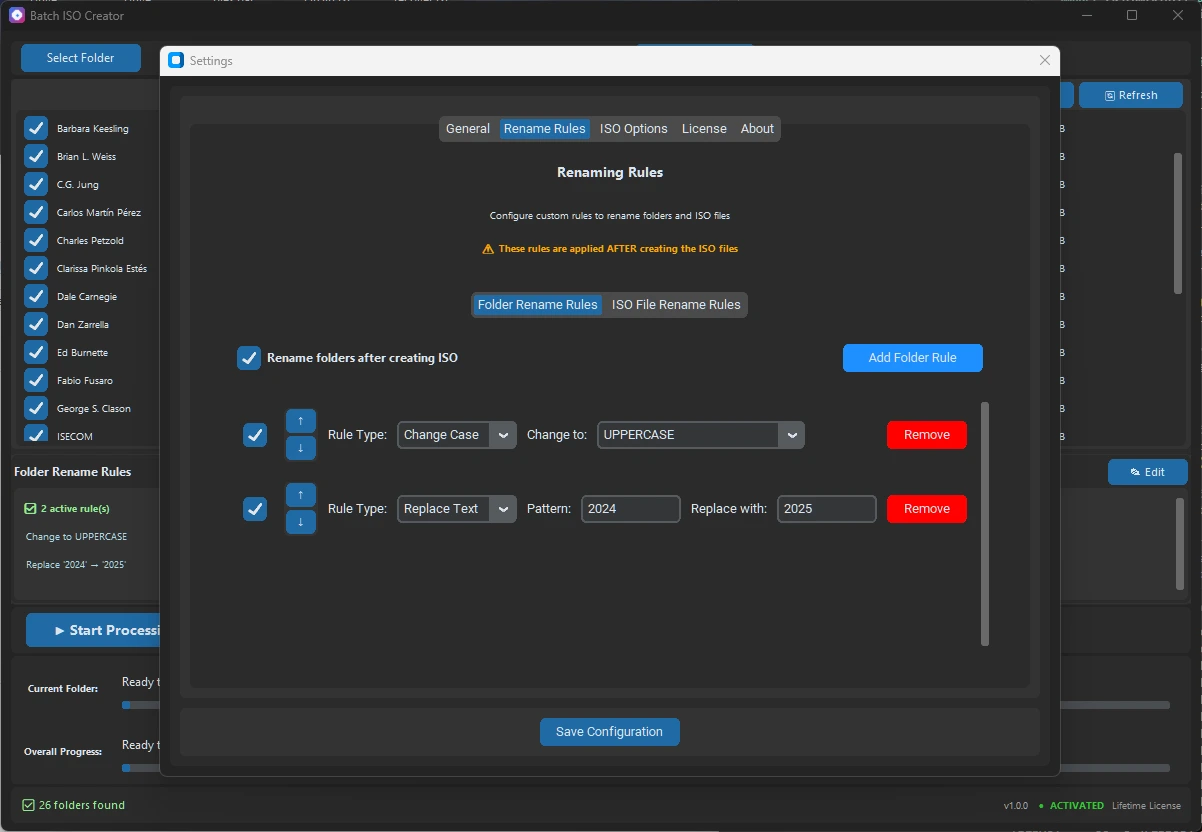
Batch ISO Creator can rename folders and ISO files before output is finalized. Current rename rule types include case conversion, pattern support, prefix, suffix, insert, delete, and serialization. Serialization can number folder and ISO names at the beginning, end, or a specific position, keeping numbering synchronized when the processing list changes.
That matters when your source folders were named by different people, copied from different projects, or exported from another system. Instead of fixing every folder manually, use a small rule set that makes the names predictable before the batch run starts.
| Messy input | Rule idea | Output style |
|---|---|---|
| Project Final FINAL | Delete duplicate status words | Project Final |
| win11 driver pack model a | Case conversion plus prefix | MODEL-A_Win11_Driver_Pack |
| Training Kit | Serialization at the start | 001_Training_Kit |
| Client - June - Archive | Pattern cleanup plus date suffix | Client_Archive_2026-06 |
Keep the output folder readable
A good ISO name is only useful if the output folder stays readable. Before starting a batch job, choose a destination that will not mix old test files, final output, and unrelated downloads. If you are creating one ISO per subfolder, the destination should make it obvious which files belong to the current run.
For repeated work, use a simple structure such as ISO_Output\2026-06-client or Archives\Release-3.0.0. Then check the operation report after the run so that the final ISO names, source folders, and any warnings can be reviewed together.
When to use Folder Mode or Batch Mode
Use Folder Mode when you are preparing one folder and want to inspect the naming decision closely. Use Batch Mode when the parent folder contains many subfolders and each one should become its own ISO output.
The naming checklist is the same in both modes. The difference is blast radius. A bad name in Folder Mode creates one confusing ISO. A bad rule in Batch Mode can create a whole set of confusing outputs, so test with one representative folder before scaling up.
Clean ISO Names Before the Batch Run
Use Batch ISO Creator to convert folders to ISO files on Windows, apply rename rules before output, and keep batch jobs easier to review with logs and reports.
FAQ
What is the safest Windows ISO file name format?
Use short, readable names with letters, numbers, hyphens, underscores, and a clear date or version. Keep the ISO file name distinct from the internal volume label, and test long folder names before a large batch run.
Do long Windows file names require Joliet Long?
Not always. Many folders work with normal ISO settings, but Joliet Long can help when Windows file names exceed regular Joliet expectations. Rename rules are still useful when the cleaner answer is to shorten or standardize names.
Can Batch ISO Creator rename folders and ISO files before output?
Yes. Batch ISO Creator supports rules for folder and ISO names, including case conversion, pattern support, prefix, suffix, insert, delete, and serialization.