Folder Mode vs Batch Mode in Batch ISO Creator
Batch ISO Creator has two ways to work: Folder Mode for focused one-folder jobs and Batch Mode for larger folder sets.
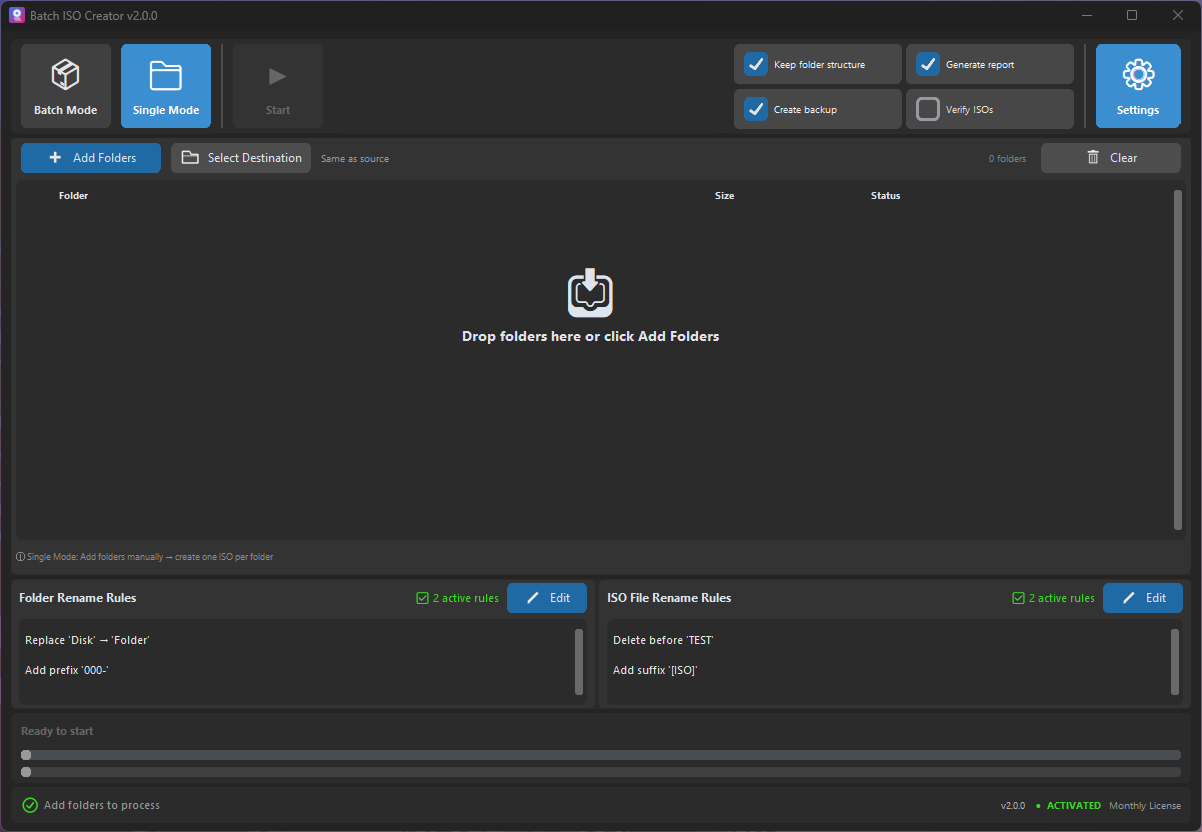
Choosing the right mode is the first small decision that makes Batch ISO Creator feel smooth. Folder Mode and Batch Mode are not competing features. They are two entry points for two different jobs.
Use Folder Mode when the work is focused and small. Use Batch Mode when the folder set is the work.
Quick comparison
| Question | Use Folder Mode when... | Use Batch Mode when... |
|---|---|---|
| How many folders? | You have one main folder or a very small set | You have many folders under a parent folder |
| How much repetition? | The job is mostly one-off | The same settings should apply across many folders |
| Naming needs? | You may only need a simple name | You likely need rename rules for consistency |
| Review needs? | A quick visual check may be enough | Progress, logs, and reports are more valuable |
Folder Mode: for direct folder-to-ISO work
Folder Mode is helpful when you want to convert one folder without building a larger batch. Choose the source folder, choose the destination behavior, check ISO options, and create the ISO. This is also a good way to test settings before running a bigger batch.
For new users, Folder Mode is often the easiest first experience because it matches the mental model of traditional folder-to-ISO utilities: select folder, create image, check result.
Batch Mode: for folder libraries
Batch Mode is where the app earns its name. Instead of treating every folder as a separate job, you point the app at a set of folders and process the selected items in one workflow. This is ideal for releases, driver packs, training modules, client deliveries, or archive sets.
Batch Mode also makes rename rules more valuable. The more folders you process, the more expensive manual cleanup becomes. Rules turn that cleanup into a repeatable part of the run.
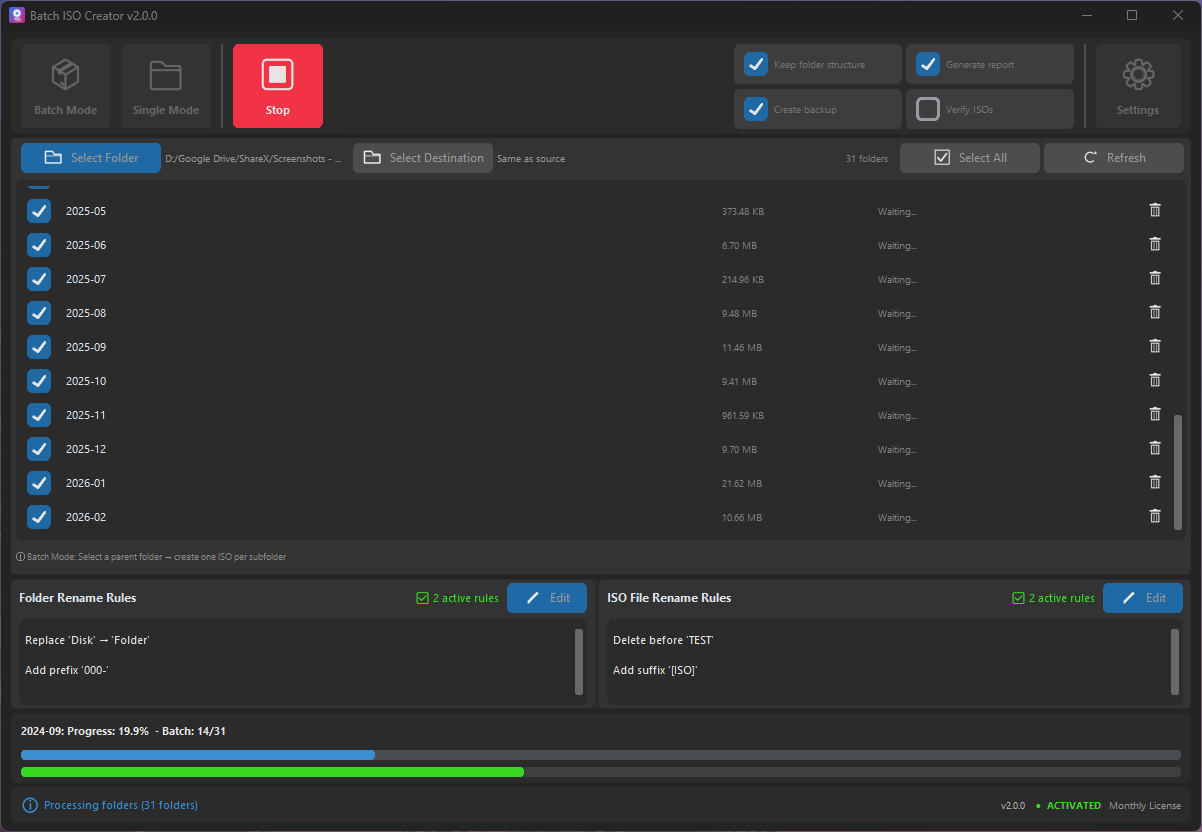
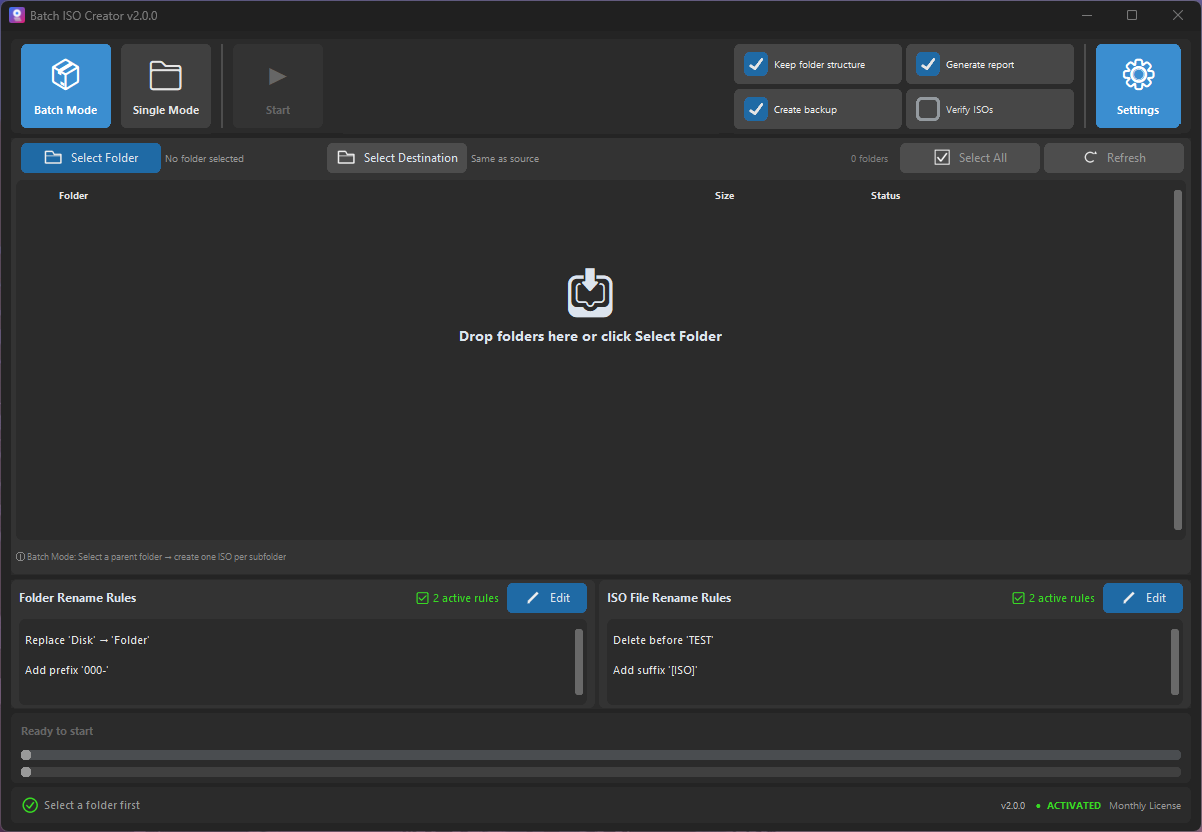
Use Folder Mode before Batch Mode
A useful sales-friendly workflow is to start small. Take one representative folder, run it in Folder Mode, mount the resulting ISO from Batch ISO Creator or Windows, and confirm the internal structure, file names, and compatibility options. Once the sample is right, switch to Batch Mode and process the full folder library.
This reduces risk without making the tool feel complicated. You are using the app the way professionals already work: test a small sample, then scale.
Settings that matter in both modes
ISO options are shared concerns. UDF helps with files larger than 4 GB. Joliet supports Windows long filenames and Unicode. Rock Ridge helps preserve Unix/Linux metadata. ISO Level 3 is a common modern choice. Compression can reduce size but takes more time. Verification can improve confidence but slows the run.
Reports also matter in both modes, especially when the ISO file is a deliverable. Even for a single job, a report can be useful if the package is going to a client or being archived.
Start Simple, Then Batch the Repetition
Download Batch ISO Creator, test one folder in Folder Mode, then use Batch Mode when the same folder-to-ISO workflow needs to scale.
FAQ
What is Folder Mode in Batch ISO Creator?
Folder Mode is for individual folder jobs when you want to create an ISO from one folder or handle a small set manually.
What is Batch Mode in Batch ISO Creator?
Batch Mode is for processing a folder set where many selected folders can become ISO files in one run.
Do rename rules work with both modes?
Rename rules are part of the shared workflow settings and can help clean folder and ISO names when enabled.