How to Organize ISO Files on Windows
A practical workflow for naming, mounting, reviewing, and keeping ISO files usable after you create them from Windows folders.
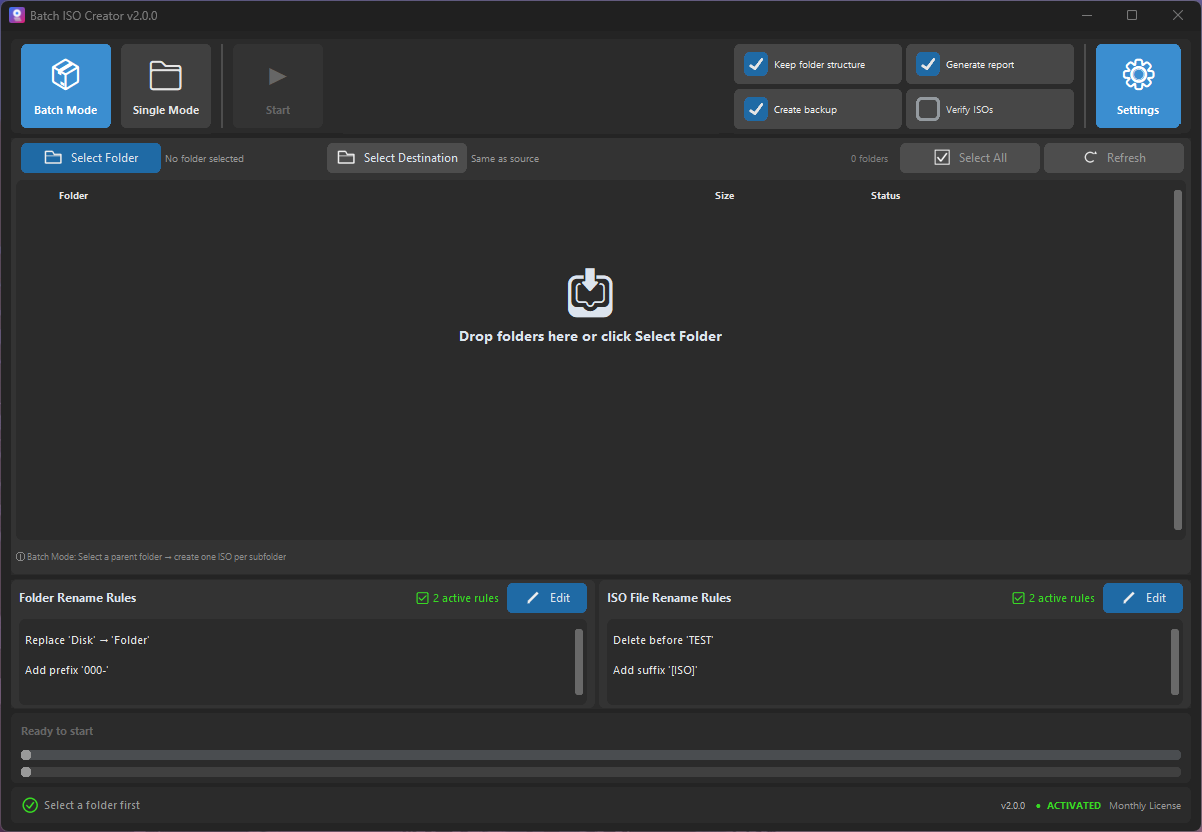
Creating the ISO is only the middle of the job. If you create ISO files from client folders, driver packs, course modules, software releases, or archive sets, the next problem is finding the right image later and knowing whether it has already been checked.
Short answer: organize ISO files by project, date, source folder, and review status. Use clean output names before creation, mount representative ISO files after creation, keep reports with the output, and use ISO Library when the collection is large enough that Windows Explorer alone becomes slow to scan.
Batch ISO Creator 3.0.0 added ISO Library for keeping ISO files together and mounting or unmounting them from the app. ISO Mounting stays free; ISO Library is for licensed workflows that need a persistent collection.
Start with names that still make sense later
A folder-to-ISO job usually begins with source folders, but the final asset is the ISO file. If the ISO name is vague, every later step becomes slower: mounting, comparing, attaching to a VM, sending to a client, or finding the matching report.
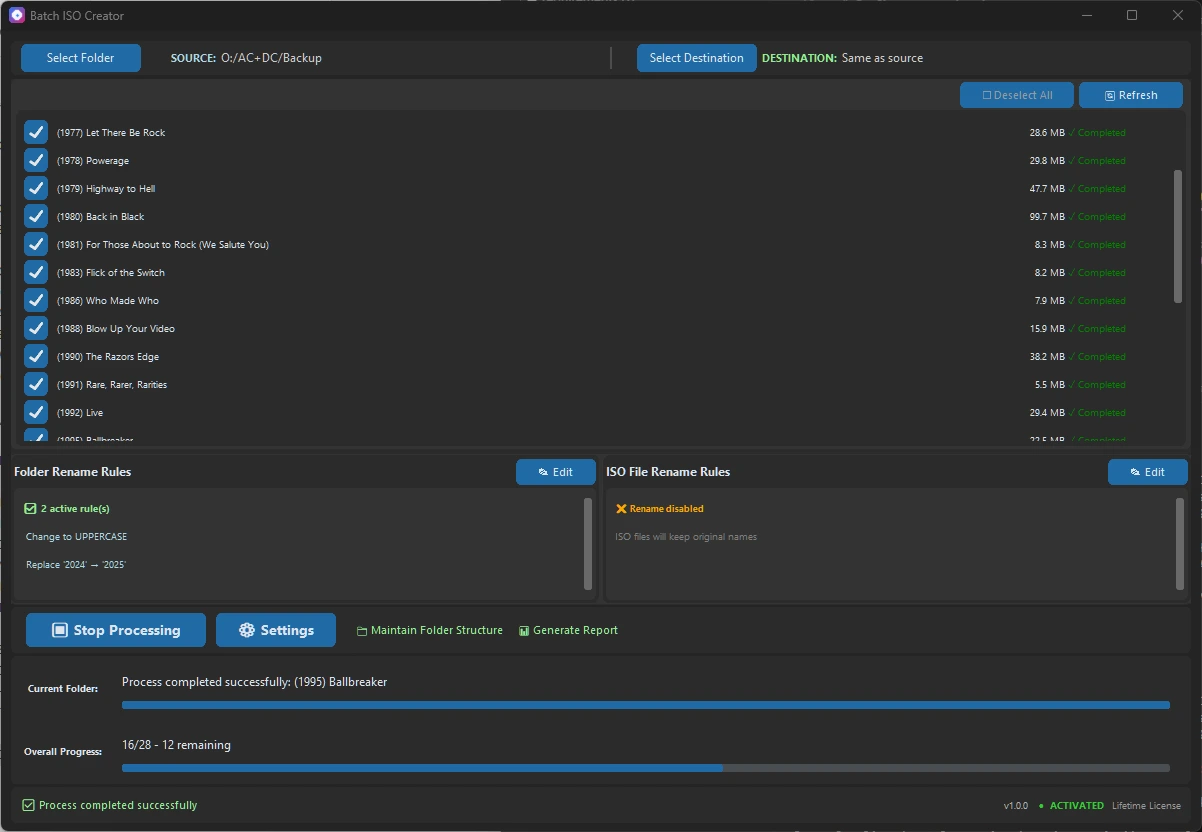
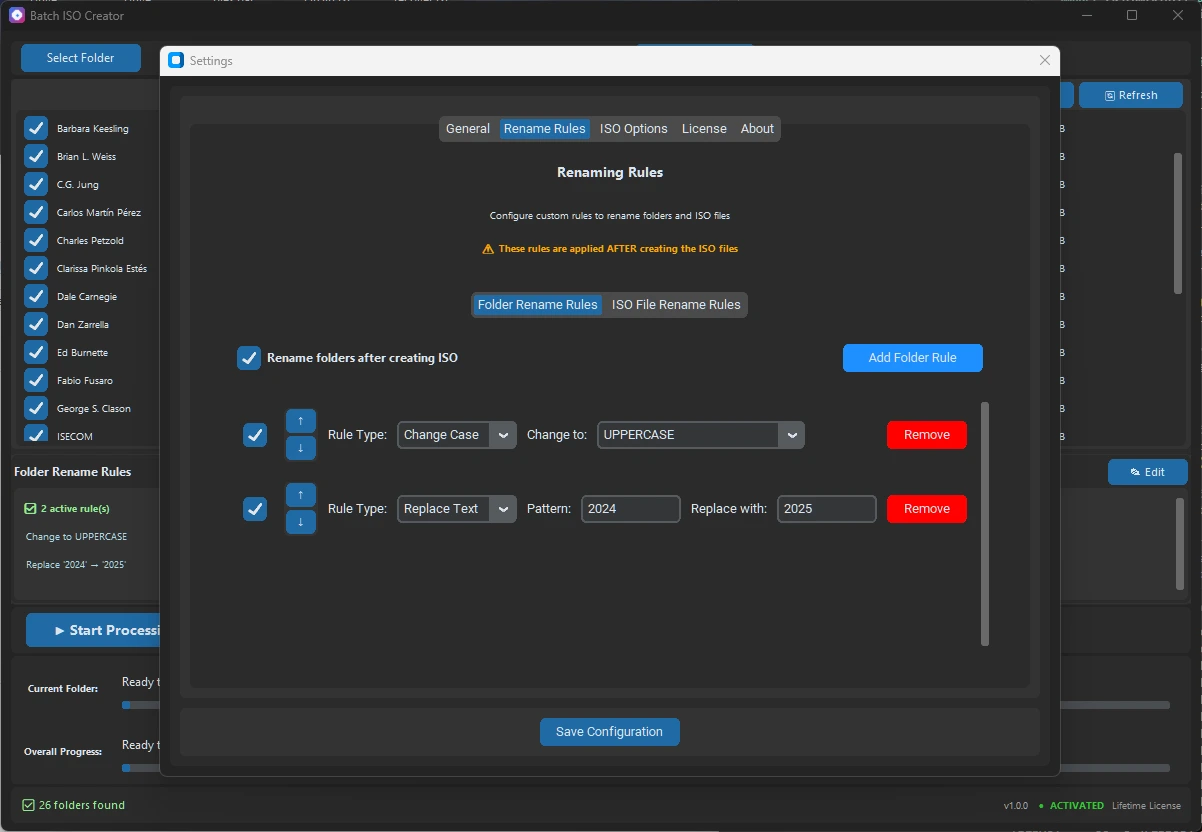
Use a simple convention before the run starts. The exact pattern depends on your work, but the same pieces keep appearing: project, system, version, date, and sequence. Batch ISO Creator supports rename rules for folders and ISO files, including case conversion, pattern support, prefix, suffix, insert, delete, and serialization. Serialization can number folder and ISO names at the beginning, end, or a specific position while keeping numbering synchronized when the processing list changes.
| ISO set | Useful pattern | Example output |
|---|---|---|
| Client delivery folders | Client, project, date | ACME_Onboarding_2026-06-25.iso |
| Driver packs | OS, vendor, model, sequence | WIN11_Lenovo_T14_001.iso |
| Training modules | Course, module number, title | ISO101_M03_LabFiles.iso |
| Software release archives | Product, version, channel | AppName_3.0.0_Release.iso |
If names are the main risk in the source set, review the Windows ISO file name rules checklist before running a large batch.
Separate creation, review, and storage
A clean ISO workflow has three areas: source folders, active output, and reviewed ISO storage. Mixing them together creates avoidable confusion. If an ISO has not been mounted and checked yet, it should not look identical to one that is ready for a handoff or long-term archive.
- Create into a controlled output folder. Keep the first output close to the job, not buried in a general downloads folder.
- Mount a sample ISO. Check the folder structure, names, and expected files from the same view a recipient will see.
- Review the report. Keep logs or operation reports beside the ISO set when the run matters later.
- Move only reviewed files into the library. A library should mean "ready to reuse", not "created at some point".
- Use a status pattern. If needed, keep temporary folders such as
_review,_approved, and_archived.
When Windows Explorer is enough
For a small set of ISO files, a normal folder can be enough. Create a project folder, put the ISO files and reports inside it, and use a clear naming convention. Windows Explorer works well when the collection is small, the users are local, and you rarely need to mount several images in one sitting.
The problem appears when the folder becomes a library instead of a one-time output. If you keep revisiting the same ISO files, checking mount status, opening images, and comparing batches, a simple folder view starts to lose context.
When ISO Library helps
ISO Library is useful when your ISO files are no longer isolated deliverables. They are a working collection: images you inspect, mount, unmount, reuse, or keep around for support. Batch ISO Creator's release copy describes ISO Library as a place to keep ISO files together and mount or unmount them from the app.
| Situation | Use Explorer | Use ISO Library |
|---|---|---|
| One temporary ISO | Yes | Usually not necessary |
| A small client handoff folder | Yes | Optional |
| Repeated support images | Possible | Better fit |
| Many mounted and unmounted ISO files | Harder to track | Better status visibility |
| Long-term ISO collection | Works with strict naming | Cleaner daily workflow |
Free mode is still useful before you commit to a larger setup. Batch ISO Creator includes free ISO Mounting and lets you create 1 ISO per app session, so you can test one representative folder, mount the result, and decide whether the larger collection needs a licensed ISO Library workflow.
Mount before you trust the collection
Do not organize bad output neatly. Before you add a finished ISO to a library or archive folder, mount it and inspect it. The fastest review is not a full audit; it is a practical check that the virtual drive shows the expected structure, the names are readable, and the files are in the right place.
This is especially important after a batch run. One wrong destination, unclear source folder, or naming rule can repeat across many ISO files. The post-creation ISO check guide covers that review step in more detail.
A repeatable ISO organization workflow
Use this pattern for Windows folder archives that need to stay useful after the day they are created:
- Prepare source folders. Remove temporary files and make sure each folder is self-contained.
- Choose the name pattern. Decide which project, date, version, and sequence fields belong in the ISO file name.
- Create one test ISO. Use Folder Mode for a representative folder when the batch is risky.
- Mount and inspect. Confirm the visible structure before scaling to the full set.
- Run the full batch. Use Batch Mode when one parent folder should produce many ISO files.
- Keep reports beside output. Reports are useful when the ISO set becomes a support or client artifact.
- Add reviewed files to storage or ISO Library. Keep the long-term collection focused on usable ISO files.
If you are still choosing the creation workflow, the Batch Mode vs Folder Mode guide explains when to test one folder and when to scale to the full set.
Keep ISO Files Ready to Reuse
Download Batch ISO Creator to create one test ISO in free mode, mount it for review, and use a licensed ISO Library workflow when your Windows ISO collection needs better organization.
FAQ
How should I organize ISO files on Windows?
Use a naming convention before creation, keep related ISO files in one reviewed destination, mount samples after creation, and keep reports with the output when the ISO set is a deliverable.
Is ISO Library required to mount ISO files?
No. Batch ISO Creator includes free ISO Mounting for mounting, opening, and unmounting ISO files. ISO Library is for licensed workflows that need a persistent ISO collection and quick mounted status.
What should I check before archiving ISO files?
Check the mounted folder structure, readable file names, expected labels, destination folder, and operation report before moving the ISO set into a long-term archive.