mkisofs for Folder-to-ISO on Windows
Understand what mkisofs does, where ISO 9660, Joliet, and Rock Ridge fit, and when a GUI workflow is safer than maintaining scripts.
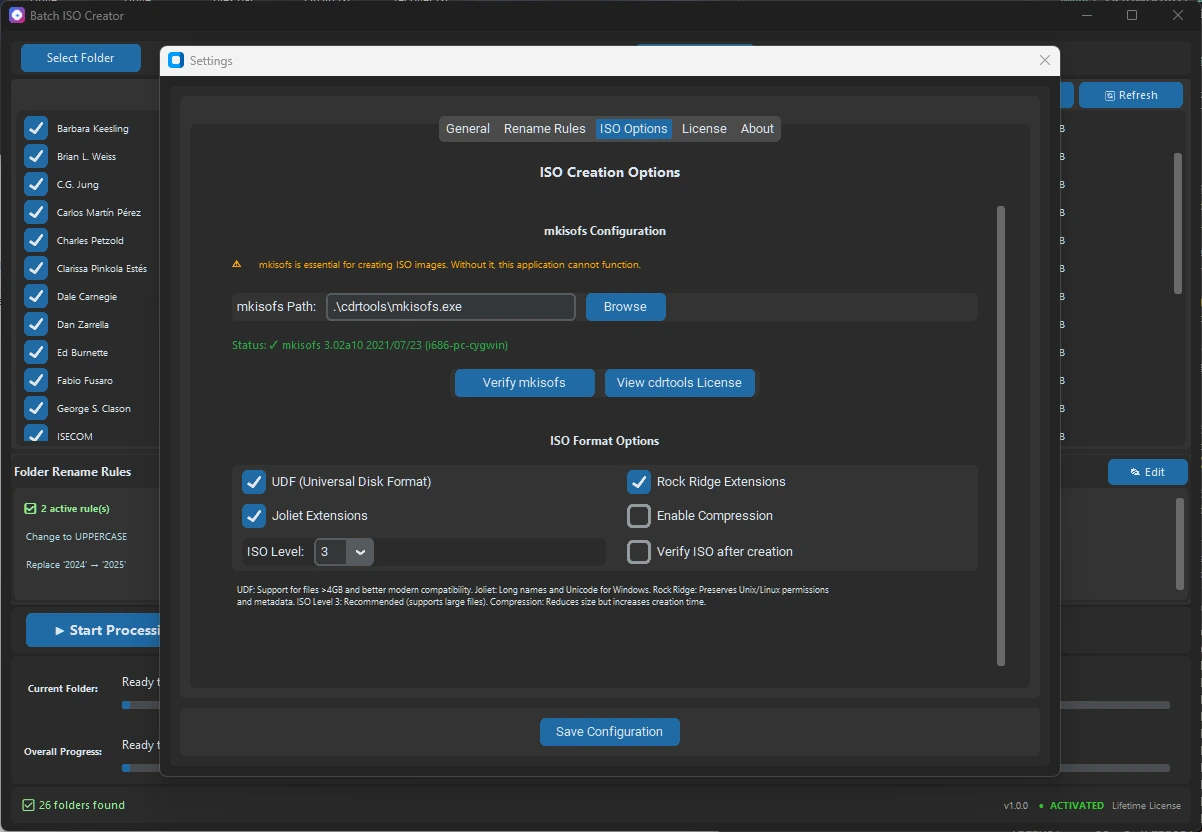
Many Windows users discover mkisofs when they search for a way to turn a folder into an ISO image. The tool matters because it can build standard ISO file system images from a folder tree, but the command itself is only one part of a reliable folder-to-ISO workflow.
Short answer: mkisofs is useful when you need ISO 9660-style image creation and compatibility extensions such as Joliet or Rock Ridge. For one controlled command, it can be enough. For repeated Windows jobs with many folders, clean output names, logs, and reports, a GUI workflow built around mkisofs is usually easier to audit.
Batch ISO Creator release copy says the app is built on mkisofs and supports ISO 9660, Joliet, and Rock Ridge. That means the technical engine and the Windows workflow can work together: mkisofs handles image creation, while the app handles repeatable setup, naming, progress, and review.
What mkisofs actually does
mkisofs takes a source folder and produces an ISO image. In practical terms, it builds the file system layout that will be seen when the ISO is mounted or opened later. That makes it relevant for software release folders, driver packs, training materials, offline kits, archives, and any folder set that needs to behave like a portable disc image.
The important point is that mkisofs is not a complete publishing workflow by itself. It does not decide how your source folders should be named, whether a batch list should become one ISO per folder, where reports should be stored, or how a non-technical user should repeat the job next month. Those workflow choices sit around the command.
Where ISO 9660, Joliet, and Rock Ridge fit
The strongest traffic in recent Batch ISO Creator blog analytics keeps coming from ISO standards and Windows file name topics. That makes sense: most folder-to-ISO mistakes are not about clicking the final button. They happen because the source folder, ISO file system settings, or output names do not match the way the ISO will be used.
| Layer | What it affects | Windows folder-to-ISO takeaway |
|---|---|---|
| ISO 9660 | Baseline ISO compatibility | Good common base when portability matters. |
| Joliet | Windows-friendly long names and Unicode support | Important when recipients browse the ISO on Windows. |
| Joliet Long | Longer Windows filename compatibility in supported workflows | Useful when normal Joliet expectations are too tight. |
| Rock Ridge | Unix-style metadata extensions | Consider it when the ISO may be used in Unix-like environments. |
If you are choosing between those settings, start with the ISO 9660 vs Joliet guide and the Joliet Long guide. If the problem is messy names instead of file system compatibility, use rename rules before rebuilding the ISO.
When a direct mkisofs command is enough
A manual mkisofs command can be a good fit when the job is small, the folder is already clean, and the same technical user will run the command again if anything changes. That is common for one-off tests, lab scripts, or build steps owned by someone comfortable with command-line tools.
The risk grows when the work becomes operational. If several source folders need the same settings, if output names must follow a client convention, or if someone needs to prove which folders were processed, the command is no longer the whole job. You also need a repeatable process around it.
Where scripts usually break down
Folder-to-ISO scripts tend to start simple. Then a new folder contains a long path, a source name needs cleanup, the destination already has an older ISO, or the team wants a report. Each exception adds another branch to the script.
- Folder selection changes. A script may assume one parent folder, while the real job needs selected folders from different places.
- Output names drift. Manual prefixes, dates, and sequence numbers can get out of sync with source folders.
- Compatibility settings are forgotten. Joliet, Joliet Long, and Rock Ridge choices are easy to miss when the command is copied by hand.
- Errors need context. A failed ISO is easier to fix when progress, logs, and reports show which folder and destination were involved.
How a GUI workflow helps
A GUI is not automatically better than a command. It is better when it keeps the important choices visible and repeatable. Batch ISO Creator is designed for Windows folder-to-ISO work where the user needs to drag folders in, choose Batch Mode or Folder Mode, apply rename rules, monitor progress, and keep operation reports.
That is especially useful for batch jobs. In Batch Mode, repeated folders can become controlled ISO output without manually editing a command for every item. In Folder Mode, a user can create a single test ISO first, confirm the naming and structure, and then move to the larger batch only when the result is correct.
Use mkisofs thinking without command-line maintenance
You can still think like a mkisofs user even when you do not run mkisofs directly. The useful questions are the same:
- What folder tree should become the ISO? Remove temporary files and confirm the top-level structure first.
- Which compatibility settings matter? Choose ISO options based on Windows browsing, long names, or cross-platform needs.
- What should the ISO be called? Use rename rules, dates, versions, or serialization before output is finalized.
- How will the job be reviewed? Keep logs and reports with the ISO set when the output is a deliverable.
- What should happen when the list changes? Prefer repeatable rules over manual editing.
Example workflow for a clean Windows ISO set
For a repeated folder-to-ISO job, use this order:
| Step | Reason | Batch ISO Creator feature |
|---|---|---|
| Prepare folders | Bad source layout creates bad ISO output. | Drag folders into Batch Mode or Folder Mode. |
| Choose ISO settings | Compatibility depends on how the ISO will be used. | ISO 9660, Joliet, Rock Ridge, and related options. |
| Clean names | Readable source and ISO names make review faster. | Folder and ISO file rename rules. |
| Create one sample | A small test catches bad settings early. | Free mode allows one ISO creation per app session. |
| Run the batch | Repeated folders need the same setup. | Batch Mode with progress, logs, and reports. |
This keeps mkisofs where it belongs: as the image creation engine, not as the only place where workflow rules live.
When to choose Batch ISO Creator
Use Batch ISO Creator when the job is more than a single command. It is a better fit when you need one ISO per folder, a controlled single-folder test, drag and drop, local processing, rename rules for folders and ISO files, visible progress, logs, and operation reports.
It is not a promise of bootable media creation, disc burning, cloud sync, ISO editing after creation, compression, encryption, or command-line automation. The verified strength is narrower and more useful for this audience: Windows folder-to-ISO creation with repeatable naming and review around a mkisofs-based engine.
Create Folder-to-ISO Jobs Without Maintaining Scripts
Download Batch ISO Creator to use a mkisofs-based Windows workflow with Batch Mode, Folder Mode, rename rules, progress, logs, and reports for repeatable folder-to-ISO output.
FAQ
What does mkisofs do?
mkisofs builds ISO 9660 file system images from folders and can include compatibility extensions such as Joliet or Rock Ridge when the workflow needs them.
Do I need to run mkisofs manually on Windows?
Not always. Manual mkisofs commands are useful for advanced users, but a GUI workflow is easier when you need repeatable folder selection, rename rules, logs, and reports.
Is Batch ISO Creator based on mkisofs?
Yes. Current Batch ISO Creator release copy says the app is built on mkisofs and supports ISO 9660, Joliet, and Rock Ridge for Windows folder-to-ISO work.