Free Folder to ISO Converter for Windows
A practical guide to using Batch ISO Creator free mode for one clean ISO, ISO mounting, and deciding when repeated folder-to-ISO work needs the full batch workflow.
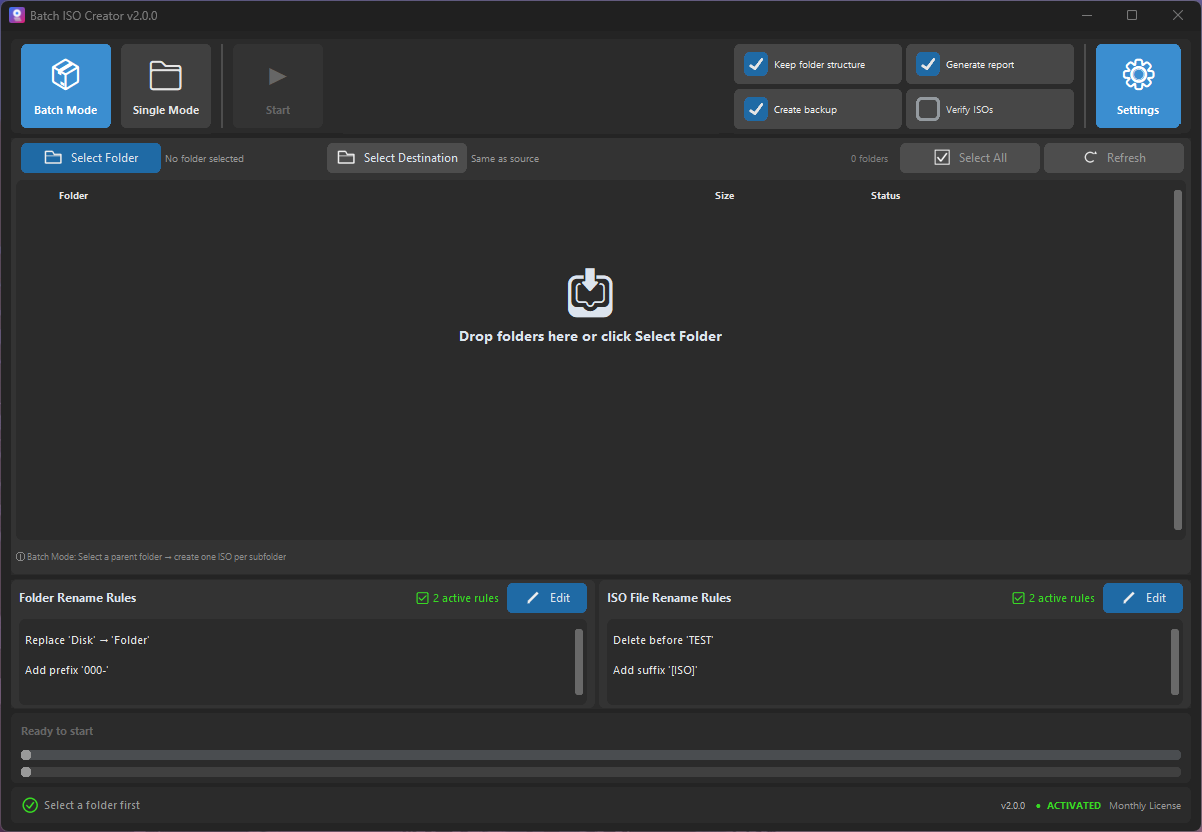
If you are searching for a free folder to ISO converter for Windows, start with the real size of the job. A one-off folder needs a different answer than a weekly archive, a driver pack set, or a client delivery folder that will be repeated over and over.
The short answer: Batch ISO Creator includes a free mode. You can create 1 ISO per app session and use ISO Mounting for free. That is enough for a quick test, a single folder, or checking an ISO after creation. When the work becomes repeated, batch-oriented, or easy to mess up by hand, a license unlocks unlimited ISO creation and ISO Library.
Best fit: use the free mode to test the folder-to-ISO workflow on Windows. Use the full workflow when the value is not one ISO, but repeatable output, clean names, progress, logs, and reports across many folders.
What free mode covers
Free mode is intentionally useful. It is not only a read-only demo. You can create one ISO per app session, mount ISO images, open mounted images, and unmount them from the app. That gives you a complete small workflow: choose a folder, create an ISO, mount it, and confirm the result.
That matters because many folder-to-ISO decisions should be tested before you run a larger batch. A small trial lets you check the source structure, destination folder, ISO label, filesystem options, and naming rules without committing a whole archive set.
| Task | Free mode fit | Why it matters |
|---|---|---|
| Create one ISO from a folder | Good fit | Use Folder Mode or a small Batch Mode run for a single result. |
| Mount an existing ISO | Good fit | ISO Mounting stays free, so you can inspect images after creation. |
| Test rename rules | Good fit | Run one representative folder before applying rules to many folders. |
| Create many ISOs in one sitting | Licensed workflow | Unlimited creation is what removes the repeated manual loop. |
| Organize a growing ISO collection | Licensed workflow | ISO Library is designed for users who keep returning to their ISO files. |
When one ISO per session is enough
Free mode is enough when the task is narrow. Maybe you have one completed project folder that needs to become a mountable ISO. Maybe you want to check whether a training folder opens correctly inside a virtual machine. Maybe you received an ISO and only need to mount it, open it, and unmount it afterward.
It is also a good way to evaluate whether Batch ISO Creator fits your workflow. You can drag in a folder, choose output, review the settings, create the ISO, and inspect the result. If the job ends there, free mode did its job.
When free mode becomes too small
The limit shows up when the work is not really "make an ISO." It is "make a clean set of ISOs from a folder collection without losing track of names, destinations, errors, or reports." That is a different job.
If you need one ISO per subfolder, repeated release packages, monthly archive snapshots, classroom kits, driver packs, or client deliverables, the paid workflow is mainly about removing friction. Unlimited creation lets you finish the whole run instead of restarting your process around a free-session boundary.
- Prepare a representative folder. Pick a folder that has normal files, long names, nested folders, and anything that might cause a warning.
- Create one test ISO in free mode. Confirm that the structure, ISO label, destination, and filesystem options match the way the folder will be used.
- Mount and inspect the result. Free ISO Mounting lets you check what a user will see after opening the ISO.
- Add rename rules if the names are messy. Use rules for case conversion, pattern support, prefix, suffix, insert, delete, or serialization before final output.
- Move to unlimited creation when the set is larger. If the real job has many folders, the licensed workflow avoids repeating the same setup.
Why rename rules matter even for free tests
A free folder-to-ISO converter should still help you discover naming problems early. ISO work often fails in boring places: inconsistent folder names, dates in different positions, duplicated words, long file names, or output files that are hard to search later.
Batch ISO Creator separates the creation workflow from the cleanup decision. You can test a representative folder, then decide whether folder names or ISO file names need rules. The current app supports rule types such as case conversion, pattern support, prefix, suffix, insert, delete, and serialization. Serialization can number folder and ISO names at the beginning, end, or a specific position, keeping numbering synchronized when the processing list changes.
| Problem | Rule idea | Cleaner result |
|---|---|---|
| Client_Final_FINAL_2026 | Delete duplicated status words | Client_Final_2026 |
| driver pack win11 model a | Case conversion plus prefix | MODEL-A_Driver_Pack_Win11 |
| Training Folder Set | Serialization at the beginning | 001_Training_Folder_Set |
How to choose the right mode
Use Folder Mode when you want to focus on one folder and create one ISO with a straightforward setup. Use Batch Mode when the source is a parent folder full of jobs and each subfolder should become its own output.
The free limit does not change the decision logic. It simply gives you a smaller first run. A good test folder can answer the important questions before you scale up: Do the names look right? Is the destination correct? Are the ISO options appropriate? Does the mounted image look like what you expected?
What not to expect from a free ISO tool
Be careful with any workflow that promises to solve every ISO problem at once. Batch ISO Creator is focused on Windows folder-to-ISO work. It does not claim to burn discs, edit ISO files after creation, create bootable operating system media, sync with cloud storage, or replace a full disc authoring suite.
That focus is useful. If your job is to turn folders into standard ISO files, keep names clean, run batches locally on your PC, and inspect the result, you do not need a tool pretending to be everything. You need a workflow that keeps the job predictable.
Test Folder-to-ISO Creation for Free
Download Batch ISO Creator, create one ISO per session, mount ISO images for free, and move to unlimited creation only when repeated folder-to-ISO work needs a full batch workflow.
FAQ
Is Batch ISO Creator free for folder to ISO work?
Yes. Free mode lets you create 1 ISO per app session and use ISO Mounting for free. A license is only needed for unlimited ISO creation and ISO Library.
When is free mode enough?
Free mode is enough for a quick one-folder test, a small one-off ISO, or mounting an ISO to inspect it. Repeated batch jobs are a better fit for the licensed workflow.
Can I use rename rules in a folder-to-ISO workflow?
Yes. Batch ISO Creator supports rename rules for folder and ISO names, including case conversion, pattern support, prefix, suffix, insert, delete, and serialization.