How to Prepare Folders Before ISO Creation
A little cleanup before you create ISO files can save a lot of renaming, rerunning, and confusion later.
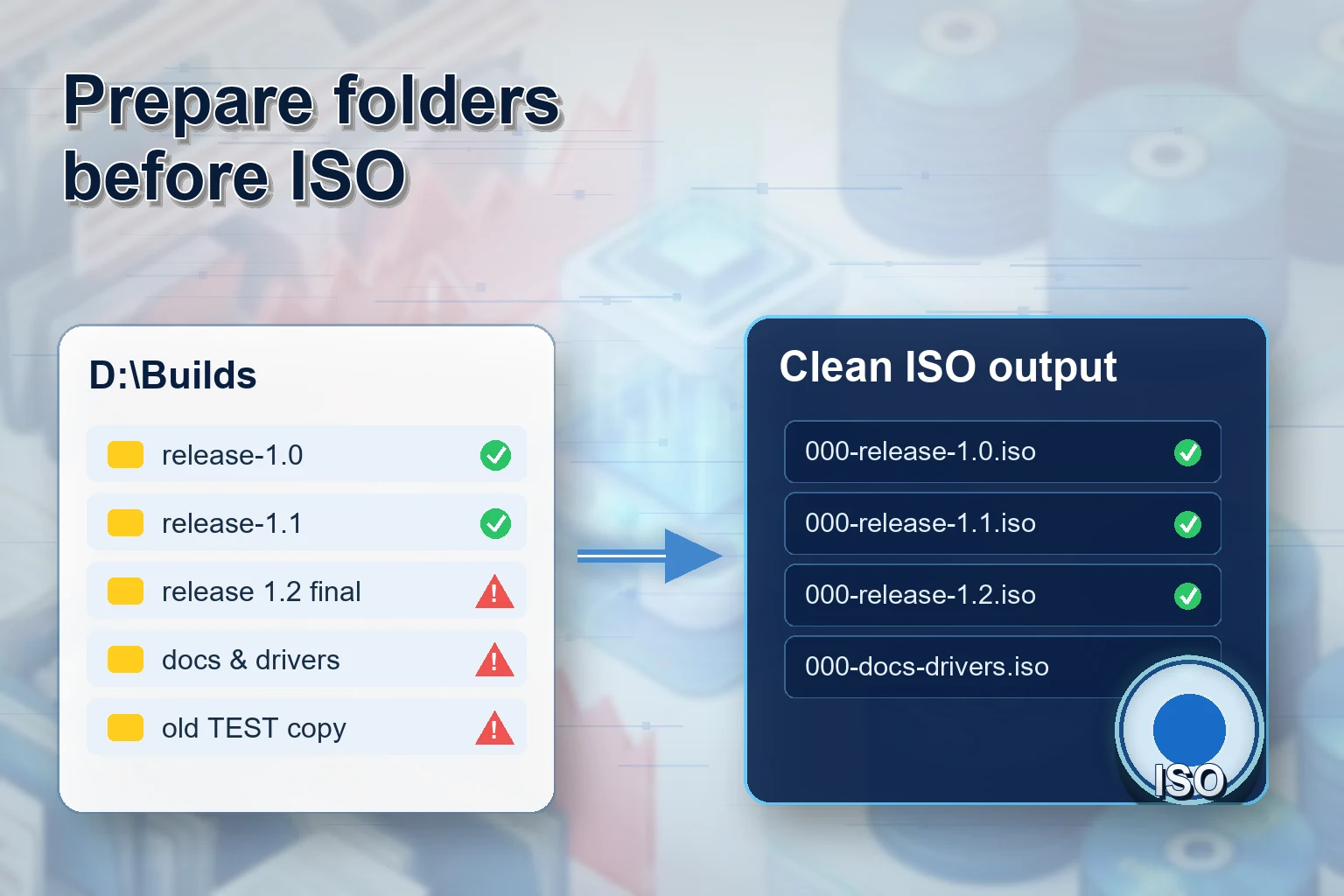
Most ISO creation problems start before the ISO tool opens. Folder names are inconsistent, files are nested too deeply, version numbers are unclear, and the output folder is not planned. If you fix those details first, the final ISO library feels much more professional.
Best practice: Prepare the folder set, define the naming convention, run a small test, then process the full batch in Batch ISO Creator.
1. Start with a Clean Parent Folder
Put every folder you want to package under one parent folder. Avoid mixing source folders, existing ISO files, temporary files, and unrelated downloads in the same place.
D:\ISO Source
|-- Release 1.0
|-- Release 1.1
|-- Release 2.0
2. Decide the Final ISO Naming Style
Before running the batch, decide whether output names should use spaces, underscores, uppercase, lowercase, dates, or project prefixes. Batch ISO Creator can apply these rules during the workflow, which is cleaner than fixing files afterward.
| Problem | Rule to consider | Result |
|---|---|---|
| Mixed capitalization | Uppercase or lowercase conversion | Consistent file list |
| Spaces and symbols | Replace spaces with underscores | Safer filenames for archives |
| Missing project context | Add prefix | CLIENT_RELEASE_1_0.iso |
| Too much clutter | Regex replace/remove | Shorter, readable names |
3. Watch for Long Names and Deep Paths
Long filenames and deeply nested folders can create compatibility headaches, especially if the ISO needs to be opened or mounted later with Windows, a VM, or another ISO tool. You do not need to obsess over every character, but you should look for extreme names before a big batch.
If you regularly hit filename warnings, read the dedicated guide: How to fix file name too long ISO errors.
4. Separate Source and Output
Use a dedicated output folder. This prevents generated ISO files from mixing with the source data and makes it easier to verify the final result.
D:\ISO Source
D:\ISO Output
5. Run a Small Test Batch
Before processing a large folder library, run two or three folders. Check filenames, open one generated ISO with Windows or another ISO tool, and confirm the structure looks right. Once the sample is good, run the full batch.
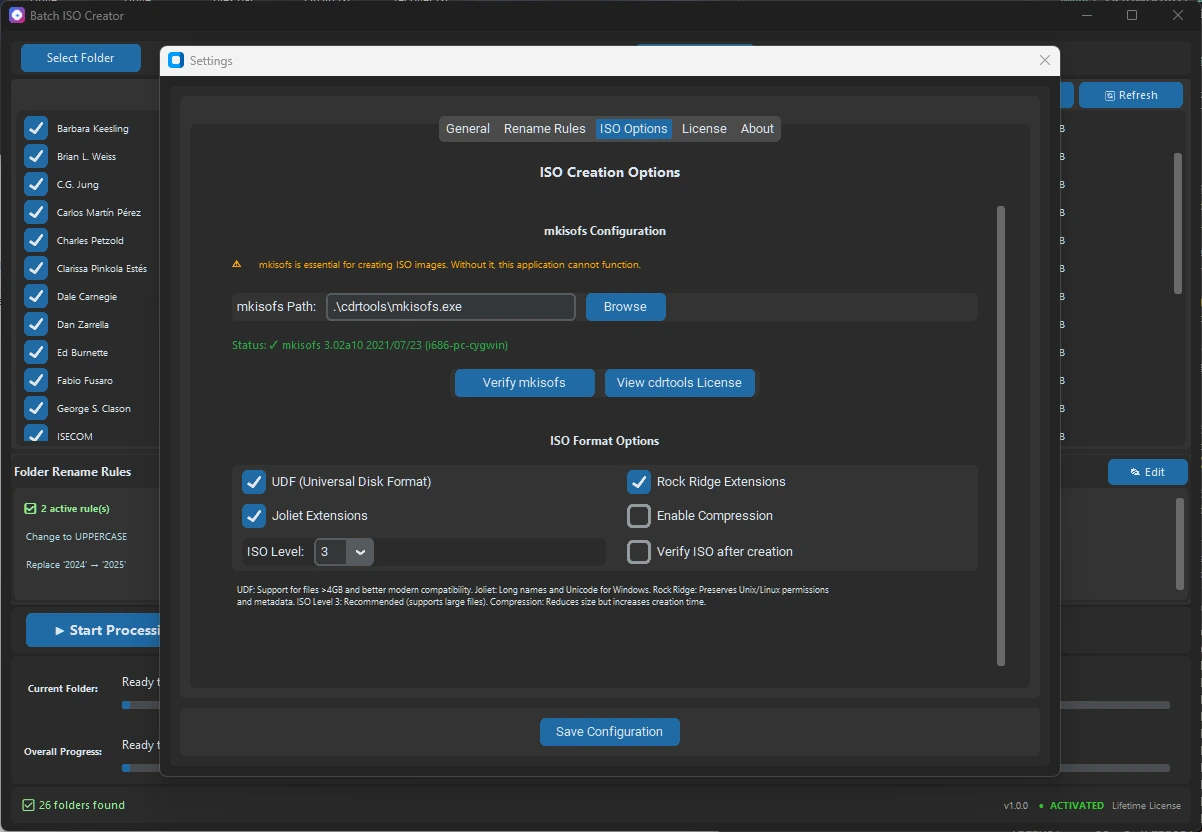
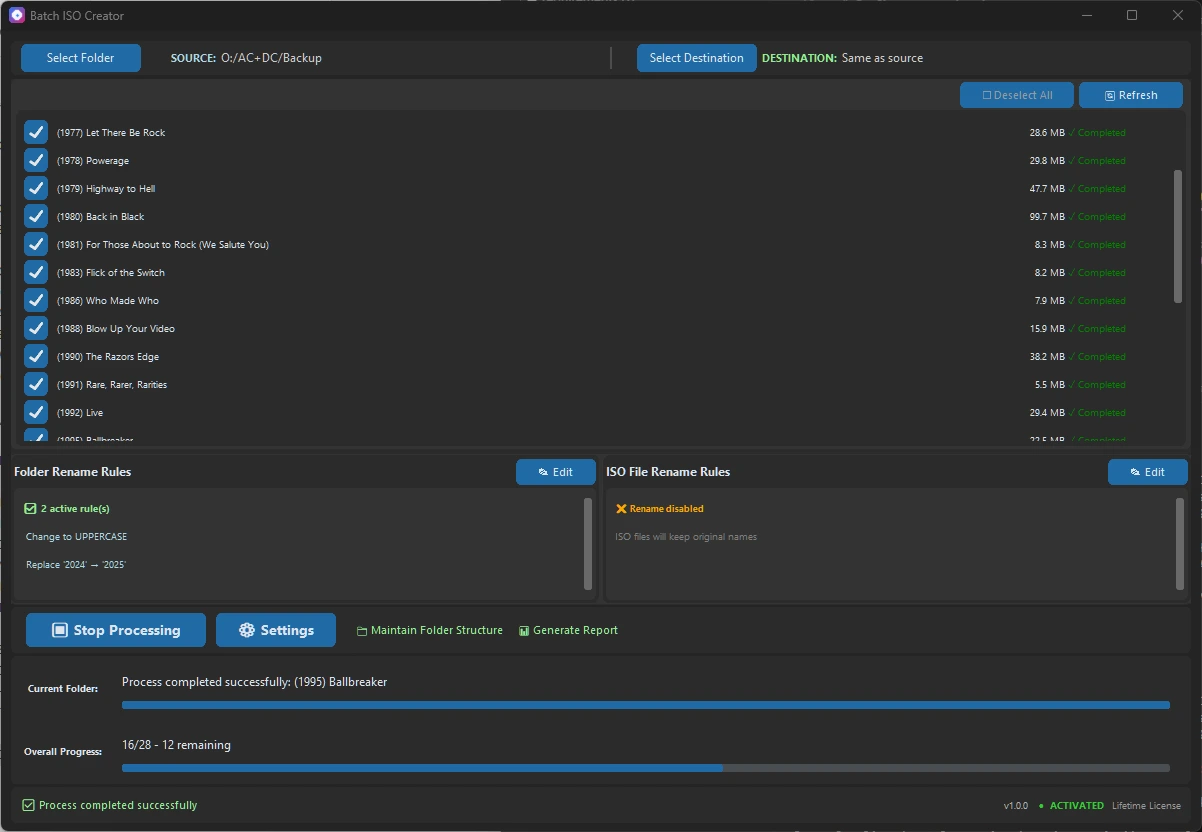
6. Keep the Report
If the ISO files are deliverables, the report is part of your work. It helps you remember which folder set was processed and gives you something to check if a user asks about a missing file later.
Prepare Once, Batch Faster
Batch ISO Creator helps turn a prepared folder set into clean ISO files with naming rules and logs.