How to Create ISO Files from Multiple Folders on Windows
The cleanest way to create ISO files from multiple folders is to treat the job as a batch, not a series of one-off conversions.
If you have one folder, creating an ISO is simple enough. If you have twenty, fifty, or two hundred folders, the job changes. You need a predictable structure, output naming rules, and a way to know what happened when the run finishes.
Fastest method: Use Batch ISO Creator's batch folder-to-ISO workflow. Put all source folders under one parent folder, set the output folder, configure naming rules, and run the batch.
Step 1: Prepare a Parent Folder
Put every folder you want to convert under one parent directory. This gives the batch a clear boundary.
D:\ISO Source
|-- Course Pack 01
|-- Course Pack 02
|-- Driver Bundle Lenovo
|-- Vendor Tools Finance
Each child folder becomes a candidate for its own ISO file. This keeps the workflow understandable and easy to repeat.
Step 2: Decide the Output Naming Convention
Good ISO names are boring in the best way. They are readable, searchable, and consistent. Before you run the batch, decide if your output should use uppercase names, lowercase names, underscores, project prefixes, or dates.
| Source name | Cleaner ISO name | Why it helps |
|---|---|---|
| Course Pack 01 | COURSE_PACK_01.iso | Easy to scan in a folder. |
| Driver Bundle Lenovo | DRIVER_BUNDLE_LENOVO.iso | Consistent with other archives. |
| Vendor Tools Finance | CLIENT_VENDOR_TOOLS_FINANCE.iso | Useful when adding a client prefix. |
Step 3: Use Batch ISO Creator
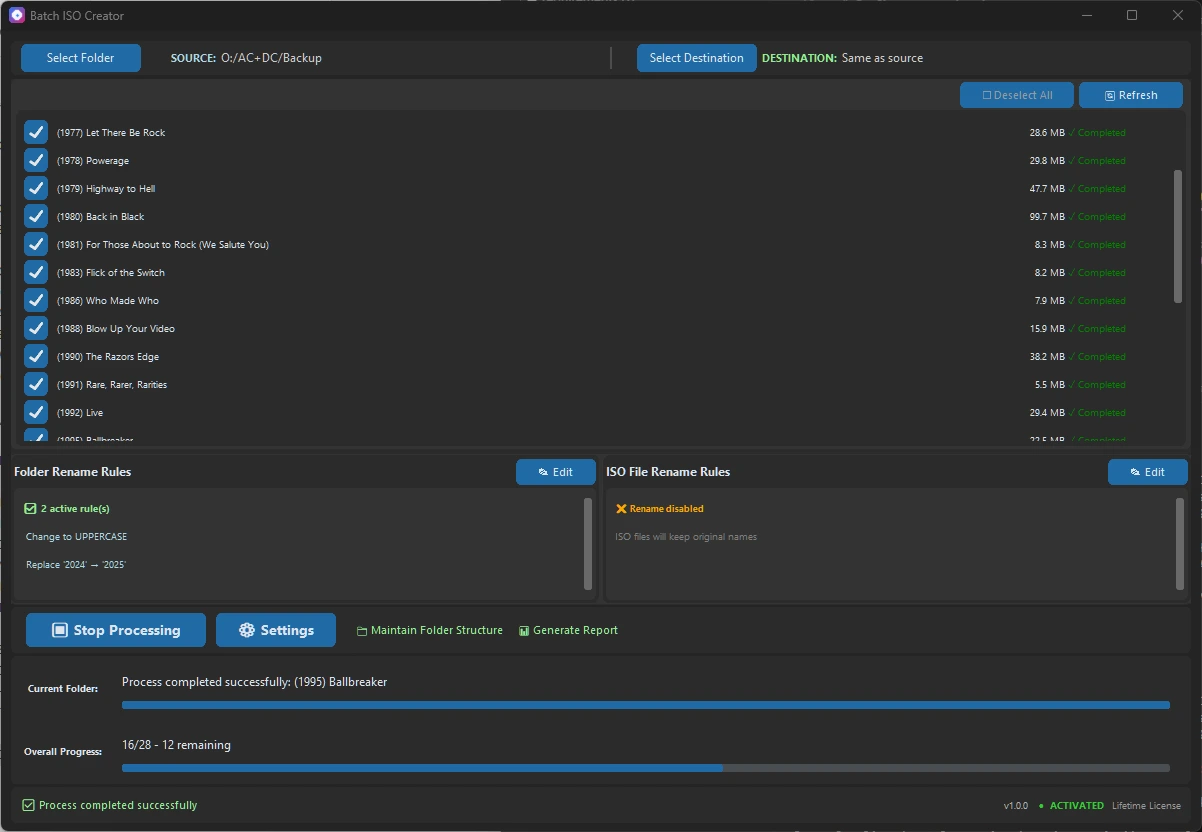
- Open Batch Mode. Choose the parent source folder that contains all child folders.
- Select the destination. Use a separate output folder so generated ISO files do not mix with your source folders.
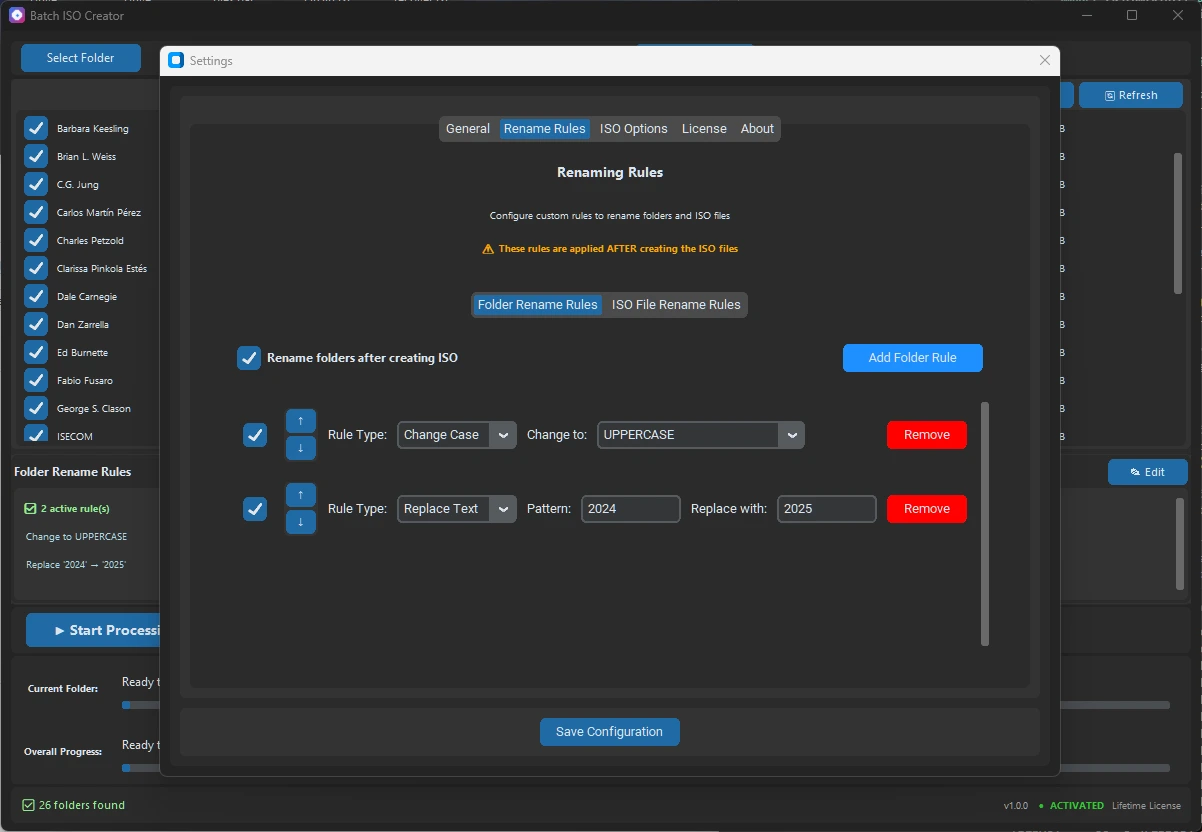
- Configure rename rules. Apply case conversion, replace rules, regex, prefixes, or suffixes if your source names need cleanup.
- Run a small test. Try a few folders first, then run the full batch when the output looks right.
- Review logs. Confirm which ISO files were created and keep the report if the work is for a client, team, or archive.
When This Workflow Is Worth Paying For
If you only make one ISO per year, a free one-off utility may be enough. If you regularly package releases, archives, drivers, course folders, or software bundles, the time saved by a batch workflow is more valuable than the license cost.
Batch ISO Creator starts at $2.99/month during the anniversary promo, so it is easy to use it for a single project and upgrade later if the workflow becomes part of your routine.
Create ISO Files from Multiple Folders Today
Download Batch ISO Creator, run a small test batch, and see how much faster the workflow feels when naming and logs are built in.