ImgBurn Alternative for Batch ISO Creation: Keep the Power, Lose the Repetition
ImgBurn is a respected classic, especially for disc workflows and careful manual builds. But if your job is many Windows folders to many ISO files, Batch ISO Creator gives that workflow a cleaner path.
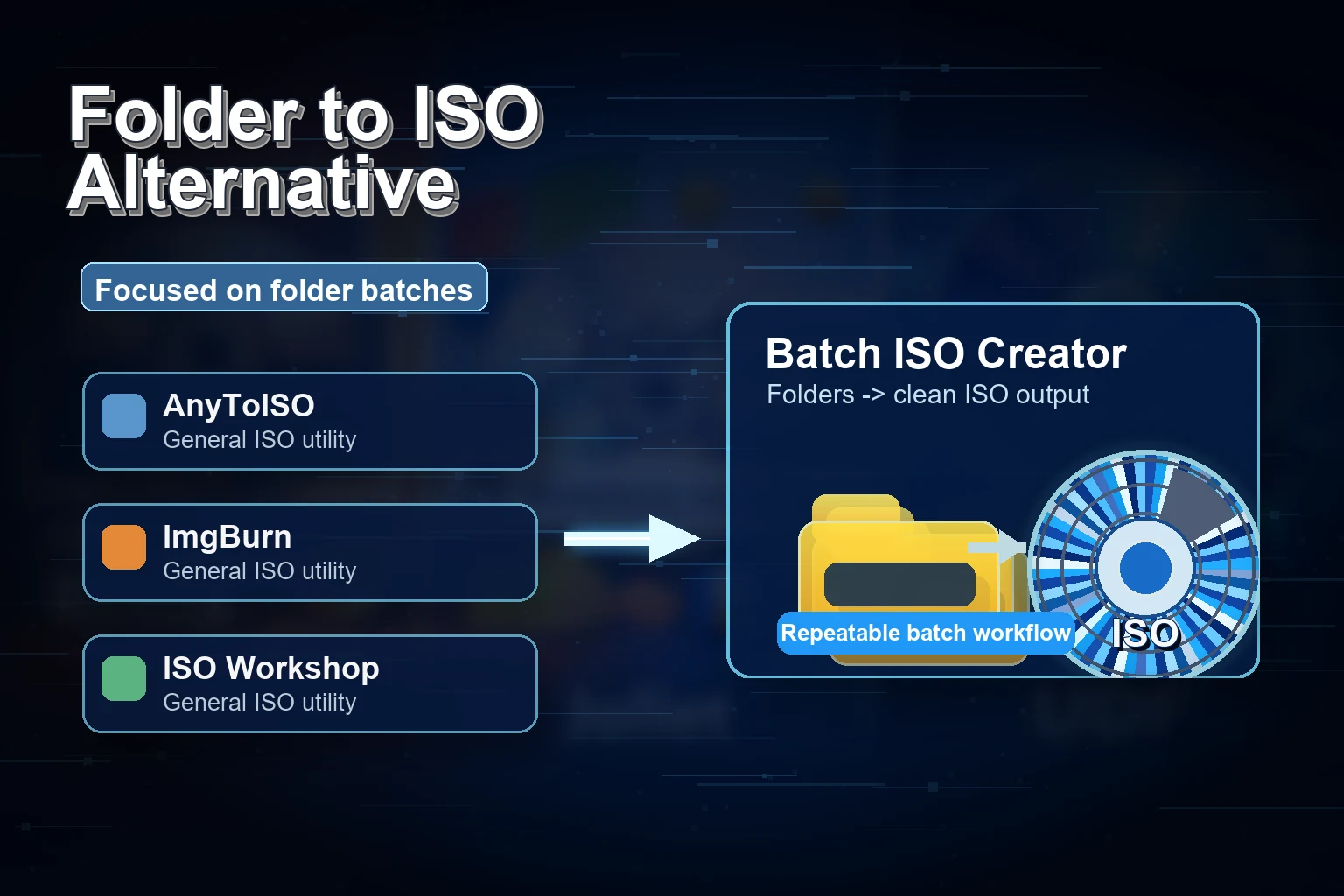
People search for an ImgBurn alternative for different reasons. Some want a simpler interface. Some want software that feels more current on Windows 10 and Windows 11. Some are not replacing ImgBurn at all; they just want a second tool that handles one specific job with less friction.
That last group is the best fit for Batch ISO Creator. ImgBurn's official site describes Build mode as a way to create an image file from files on your computer or network, and the ImgBurn support forum's Build Mode guide goes deep into adding files and folders, output mode, filesystem options, labels, restrictions, and bootable disc settings. It is a capable tool.
Batch ISO Creator takes a narrower, more commercial path: take folders on Windows, turn them into ISO files in bulk, standardize names, and give the user feedback. That focus makes it easier to sell because the value is concrete. You are not asking users to learn a general ISO workbench. You are giving them a finished workflow for a repetitive job.
Short recommendation: Keep ImgBurn for classic disc and detailed manual image tasks. Choose Batch ISO Creator when the work is folder packaging at scale: many folders, clean ISO names, predictable settings, and logs.
Why Users Look for an ImgBurn Alternative
The usual reason is not that ImgBurn cannot create an ISO. It can. The reason is that a manual image-building workflow can feel heavy when the real job is repetitive folder packaging.
For example, say you have a parent folder full of project folders:
D:\Builds
|-- release-1.0
|-- release-1.1
|-- release-1.2
|-- release-2.0
|-- release-2.1
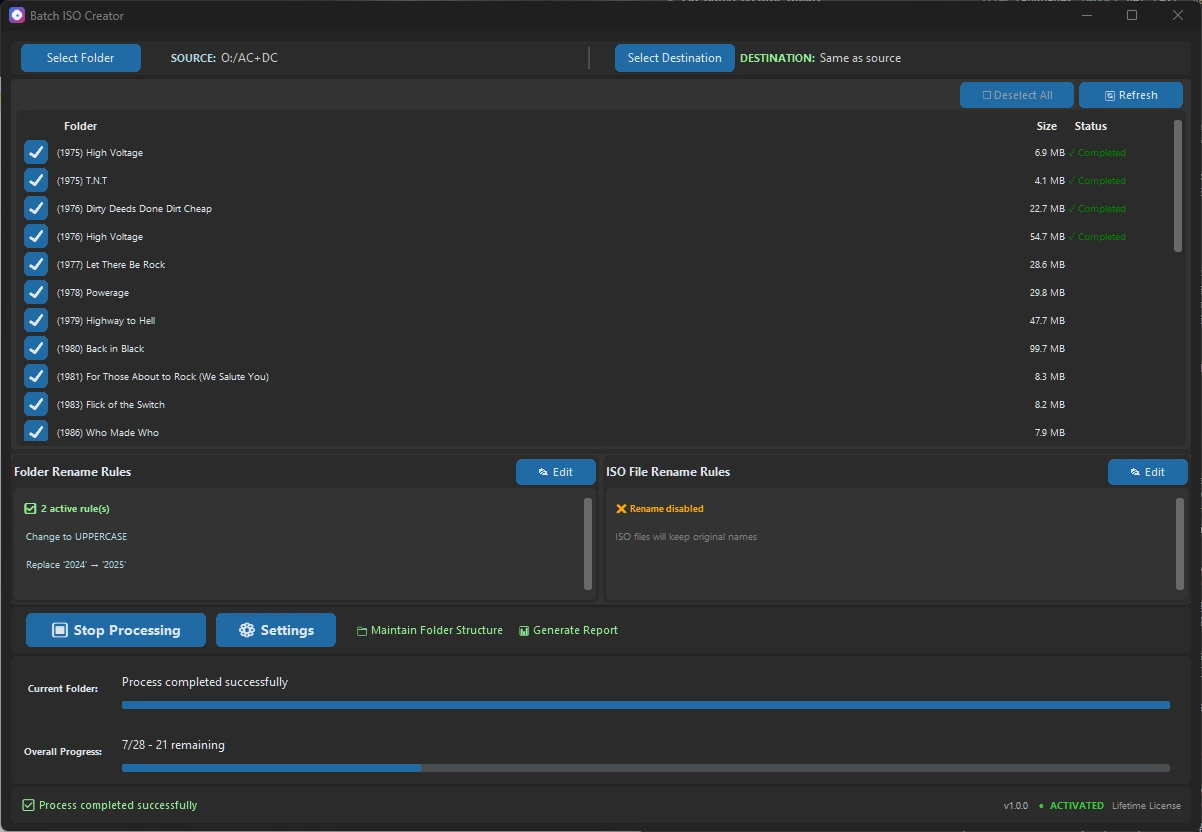
If every folder needs its own ISO, the problem becomes less about image authoring and more about batch operations. You want a tool that understands the shape of the work. Select the folder set, decide naming rules, run the batch, and check the result.
ImgBurn vs Batch ISO Creator for Folder-to-ISO Work
There is no need to make this comparison hostile. ImgBurn is a classic for good reasons. The smart sales angle is to compare the workflows where Batch ISO Creator is intentionally stronger.
| Job to be done | ImgBurn strength | Batch ISO Creator strength | Best buying logic |
|---|---|---|---|
| Create a carefully configured ISO by hand | Detailed Build mode and filesystem options | Simple ISO options for common folder packaging | Use the tool that matches how much control the job needs. |
| Turn many folders into many ISO files | Works well for hands-on builds | Designed around batch folder processing | Batch ISO Creator saves time when repetition is the problem. |
| Standardize generated ISO names | Manual naming control | Rename rules, regex, case conversion, prefixes, suffixes | Cleaner output without a second cleanup pass. |
| Review what happened after a run | Detailed technical feedback in the app's own workflow | Progress, logs, and reports for batch jobs | Better for proving a batch of deliverables was generated. |
| Help a non-specialist finish the job | Powerful for users who know disc imaging concepts | Direct Windows interface focused on folders | Less training when the goal is folder-to-ISO output. |
Why Batch ISO Work Deserves Its Own Tool
A batch tool is not just a faster button. It changes the quality of the output. The more folders you convert, the more likely it is that one will have an odd character, one will be named in a different style, one will need a predictable label, and one will need follow-up. If you do not have logs, you are left inspecting the output folder manually.
Batch ISO Creator puts those concerns closer to the surface. It is built for the reality that folder libraries are rarely perfect before you start.
Clean output names
Use rename rules before generation so the final ISO library looks intentional.
Repeatable settings
Use the same workflow for a new project folder next week, next month, or next release cycle.
Visible progress
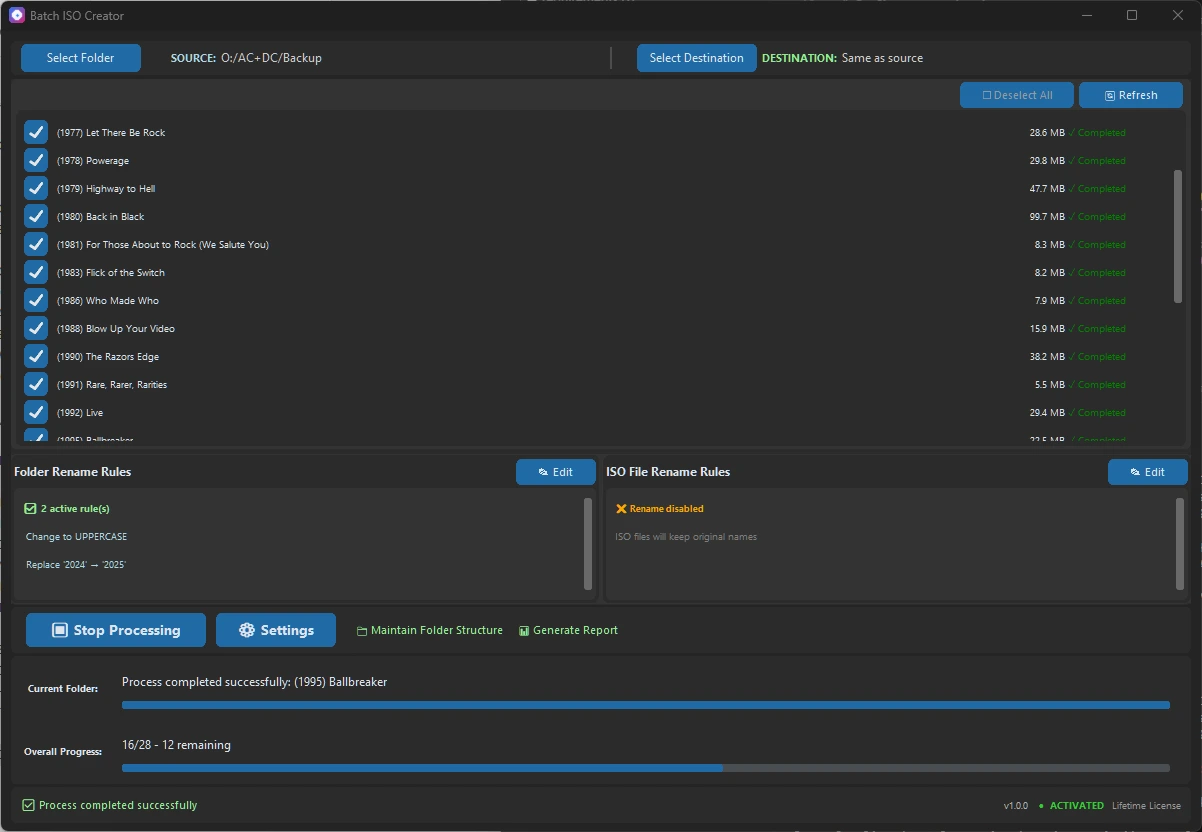
Know what is happening during the run and keep reports when the work matters.
How to Move an ImgBurn Folder Workflow to Batch ISO Creator
If you already know ImgBurn, you probably have a mental checklist: source folder, destination, label, filesystem choices, start build, verify output. Batch ISO Creator keeps the useful parts of that thinking and removes the repeated setup when there are many folders.
- Group your source folders. Put the folders you want to convert inside one parent directory. This gives the batch a clean boundary.
- Open Batch Mode. Choose the parent folder and output directory. Each subfolder becomes an ISO job.
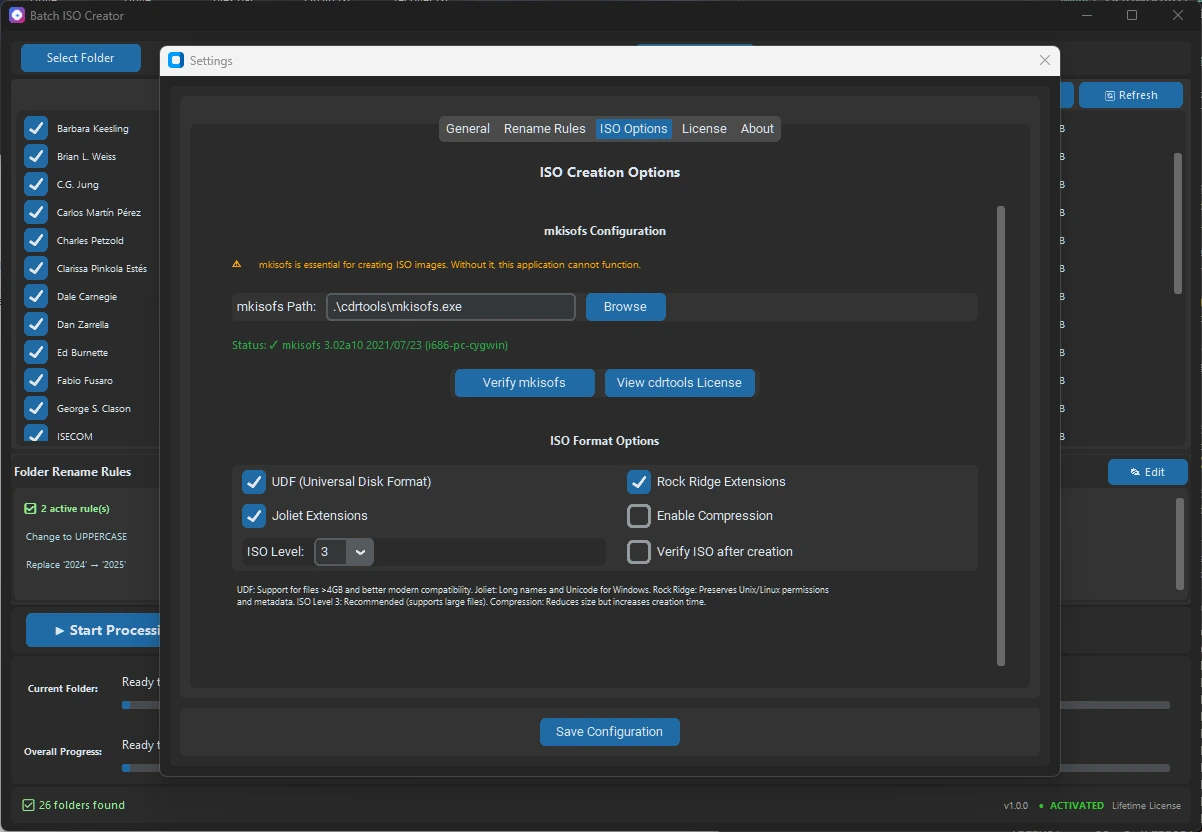
- Set the naming convention. Use rename rules to create readable ISO filenames without editing each one manually.
- Run a small test batch. Convert a few folders first. Review the output, then run the full set.
- Keep the report. If you are packaging deliverables for a client, team, lab, or archive, the log is part of the value.
Best Use Cases
Batch ISO Creator is especially strong when users are turning organized folder collections into standard ISO deliverables. These are common scenarios where an ImgBurn user might want a more focused companion tool:
| Scenario | Why ISO helps | Why Batch ISO Creator helps |
|---|---|---|
| Offline installer archives | Each installer set becomes a portable disc image | One batch can package many app folders with consistent names. |
| Software release snapshots | Release folders are preserved as standard ISO images | Rename rules can include version, date, or project naming conventions. |
| Training and lab materials | Course or lab folders become clean ISO packages | Reports help confirm the full set was generated. |
| Personal archives | Folder collections stay browsable and portable | Batch processing removes the repeated manual work. |
Pricing and ROI
Batch ISO Creator's promo pricing is simple: $2.99 monthly, $19.99 annually, or $59.99 lifetime. For ImgBurn users who only need a one-time batch, the monthly plan is an easy test. For recurring archive or release work, the lifetime option keeps the tool ready whenever another folder set appears.
The strongest ROI argument is time saved per batch. If you have twenty folders and each manual setup takes even two or three minutes, the work adds up quickly. Batch ISO Creator is priced so one avoided afternoon of repetitive work can pay for the tool.
Use the Right Tool for the Repetitive Part
ImgBurn remains a classic. Batch ISO Creator is the focused alternative when the job is many folders, clean names, and a repeatable Windows workflow.
FAQ
Is Batch ISO Creator a replacement for every ImgBurn feature?
No. It is a focused alternative for batch folder-to-ISO creation. That focus is exactly why it is easier to recommend for bulk Windows folder packaging.
Can Batch ISO Creator help if my source folder names are inconsistent?
Yes. Rename rules are one of the clearest advantages for batch output. You can standardize names before the ISO files are created.
Can I use ImgBurn and Batch ISO Creator together?
Yes. A practical setup is to keep ImgBurn for manual disc/image work and use Batch ISO Creator for folder batches.
Research Notes
This article references the official ImgBurn site and the ImgBurn Build Mode guide.