How to Avoid Duplicate ISO File Names on Windows
Duplicate ISO names can overwrite output, confuse review, and hide which folder became which ISO. Fix the naming plan before the batch run.
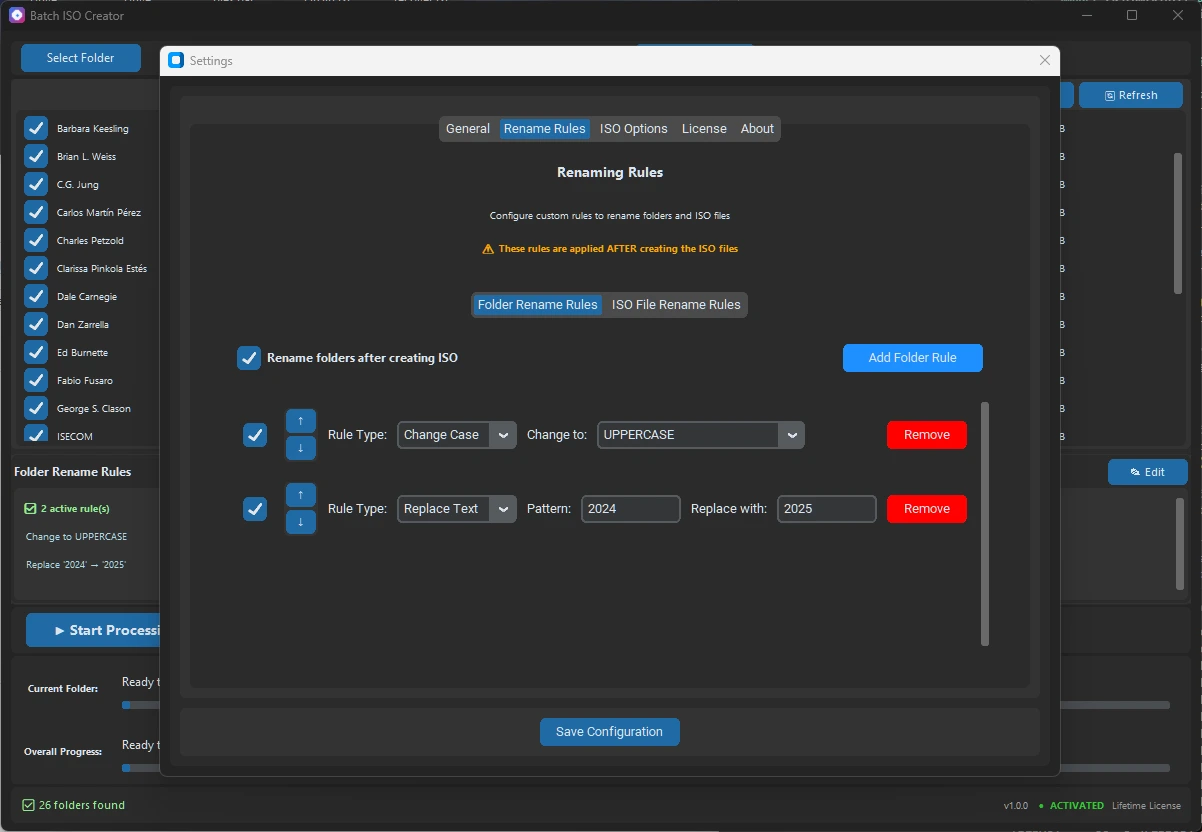
Duplicate ISO file names are a quiet problem in Windows folder-to-ISO work. The first ISO may build correctly, the second may ask to overwrite it, and a later review may leave you wondering which source folder created which output file. In a one-folder job that is annoying. In a batch job, it can turn into a delivery mistake.
The fix is to treat naming as part of the ISO workflow, not as cleanup after the files exist. Decide what makes each ISO unique, keep the output folder separate, clean the source names, and apply a repeatable rule before creating the full set.
Short answer: avoid duplicate ISO names by using a fresh output folder, adding unique context to each output name, and applying rename rules before the batch starts. For ordered sets, use serialization so the folder list and ISO output stay easy to compare.
Why duplicate ISO names happen
Most duplicate names come from a mismatch between folder organization and output naming. Two different parent folders can both contain a child folder named Setup, Docs, Final, or Release. If each child folder becomes an ISO using only the child name, the output names collide even though the source folders are different.
Duplicates can also appear after cleanup. A rule that removes temporary text may turn Client A - Final and Client A Final into the same name. A rule that removes dates can make separate snapshots look identical. A rerun can also collide with old output if the destination folder still contains ISO files from the previous attempt.
| Duplicate source | Example | Safer naming choice |
|---|---|---|
| Repeated child folder | ProjectA\Release and ProjectB\Release | Add the project or parent folder to the ISO name. |
| Cleanup makes names equal | Client_Final and Client - Final | Review the cleaned preview before running the batch. |
| Old output remains | DriverPack.iso already exists | Use a dated output folder for each run. |
| Manual names are reused | Every output is typed as Archive.iso | Use a pattern, suffix, or sequence number. |
Decide what makes each ISO unique
A good ISO name should tell reviewers what is inside the image and why it is different from the other images in the same set. For small jobs, the source folder name may be enough. For larger jobs, include one more piece of context: client, project, version, date, platform, parent folder, or sequence number.
Use the smallest unique pattern that will still make sense later. If the output will be copied into an archive, sent to a client, mounted by another technician, or checked months from now, a name like Release.iso is too weak. A name like ACME_App_3.0.0_Release.iso is much easier to trust.
Keep output separate from source folders
Before changing rename rules, make sure the destination is clean. The output folder should not sit inside the source tree, and it should not mix failed attempts with corrected ISO files. A fresh folder such as iso-output-2026-07-02 gives the run a clean target and makes duplicate checks easier.
This also prevents a second mistake: accidentally including generated ISO files in a later source scan. The guide on choosing an output folder for batch ISO creation covers that structure in more detail.
Clean the base names before adding uniqueness
Do cleanup first, uniqueness second. If source folders contain repeated spaces, copied status labels, unsupported characters, or inconsistent separators, fix those before adding project codes or sequence numbers. Otherwise, the unique part may hide a messy base name.
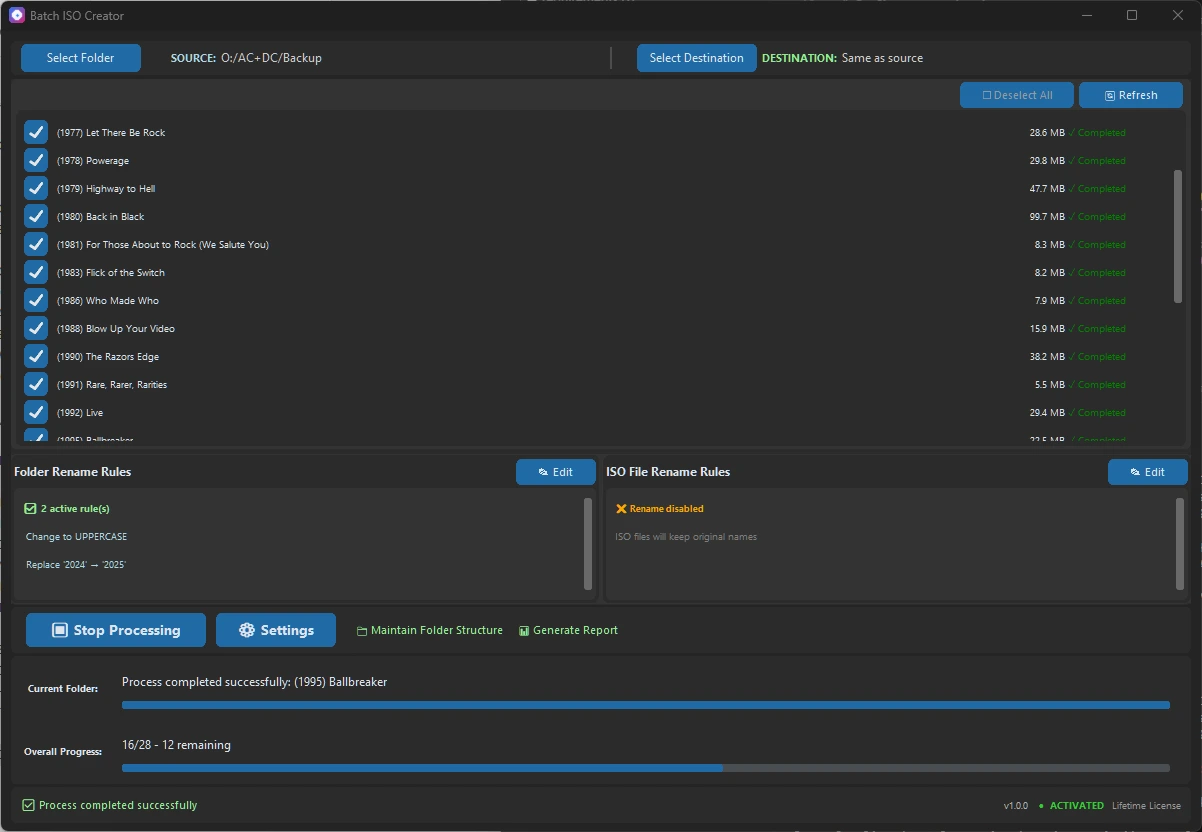
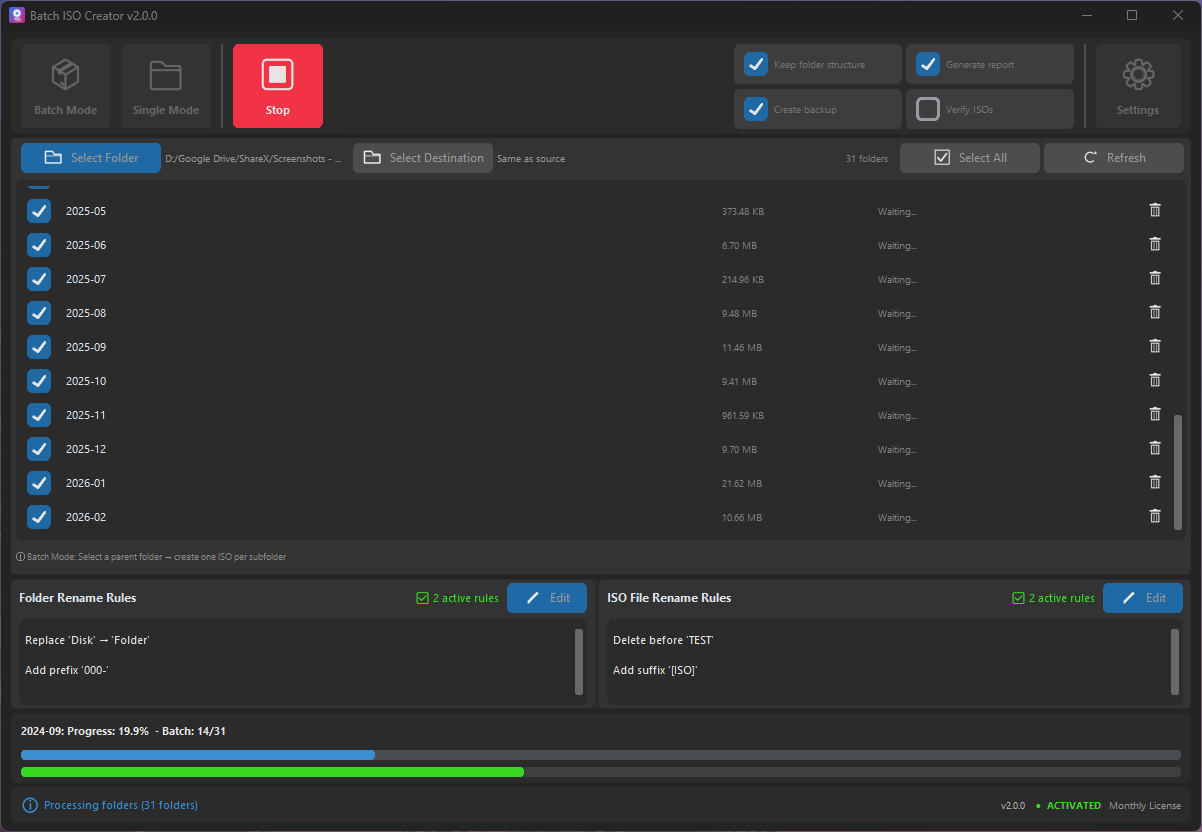
Batch ISO Creator supports rename rules for folders and ISO files, including case conversion, pattern support, prefix, suffix, insert, delete, and serialization. Use those rules to normalize names before output is finalized. For source names that include characters Windows or ISO settings dislike, pair this workflow with the guide to fix invalid characters in ISO file names.
Add unique context with rename rules
Once the base names are clean, add the differentiator. A prefix works well when every ISO belongs to the same client or project. A suffix works well when the readable folder name should stay first. Serialization works well when order matters or when several folders could otherwise share the same final name.
| Need | Rule style | Output example |
|---|---|---|
| Separate clients | Prefix | ACME_Installers.iso |
| Separate versions | Suffix | Release_3.0.0.iso |
| Keep sort order | Serialization at beginning | 001_DriverPack.iso |
| Keep project code first | Specific-position serialization | ACME_001_Training.iso |
Batch ISO Creator 3.0.0 release copy says serialization can number folder and ISO names at the beginning, end, or a specific position, and keep numbering synchronized when the processing list changes. That makes it a strong fit for duplicate-prone sets where order and uniqueness both matter. The deeper guide on automatic ISO numbering shows when each position makes sense.
Test one folder before the full batch
Do not wait for a full run to discover a duplicate naming rule. Pick one representative folder and create a test ISO first. Check the visible ISO file name, mount the image if needed, and confirm the report entry matches the source folder you expected.
If the test name is too generic, update the rule before processing the whole list. If the test looks correct, scan the planned folder list for duplicates after cleanup. The goal is simple: every source folder should point to a final ISO name that is unique, readable, and predictable.
Common mistakes to avoid
The first mistake is relying on Windows overwrite prompts as the duplicate check. By the time Windows asks, the batch has already reached the wrong naming plan. Prevent the collision earlier by reviewing output names before the run.
The second mistake is making names unique but unreadable. Random suffixes may prevent overwrites, but they do not help a technician, reviewer, or client understand the ISO. Prefer meaningful context such as project, version, date, platform, or sequence.
The third mistake is changing folder names and ISO names separately. If the source folder, ISO file, and operation report use different patterns, review becomes slower. Keep the naming logic consistent across the workflow so the batch remains auditable.
Recommended workflow
- Start with a clean destination. Use a fresh output folder that is outside the source tree.
- Find duplicate-prone source names. Look for repeated child folders such as
Setup,Docs,Final, andRelease. - Clean the base name. Normalize separators, remove temporary labels, and fix invalid characters.
- Add unique context. Use a prefix, suffix, project code, version, date, or serialization rule.
- Create a sample ISO. Confirm the output name, mounted structure, and report entry.
- Run the full batch. Keep logs and operation reports with the final output set.
For high-volume folder-to-ISO work, this naming pass is not extra paperwork. It is the part that prevents overwrites, repeated manual cleanup, and confusing delivery folders.
Create Unique ISO Output Names Before the Batch Runs
Use Batch ISO Creator to turn folders into ISO files on Windows, apply folder and ISO rename rules, add serialization when order matters, and review output with logs and operation reports.
FAQ
Why do duplicate ISO file names happen in batch jobs?
They usually happen when different source folders share the same final folder name, when cleanup rules make names identical, when output from an older run remains in the destination folder, or when every ISO is named manually.
How do I stop Windows from overwriting ISO files?
Use a separate output folder for each run, keep the output outside the source tree, and apply a naming pattern that includes a unique project, date, parent folder, version, or sequence number.
Can Batch ISO Creator help avoid duplicate ISO names?
Yes. Batch ISO Creator supports Batch Mode, Folder Mode, folder and ISO rename rules, serialization, progress tracking, logs, and operation reports for Windows folder-to-ISO workflows.