Folder to ISO Automation Without Scripts
Scripts are powerful, but not every folder-to-ISO job deserves a custom script. Sometimes the best automation is a focused app that removes the repeated steps.
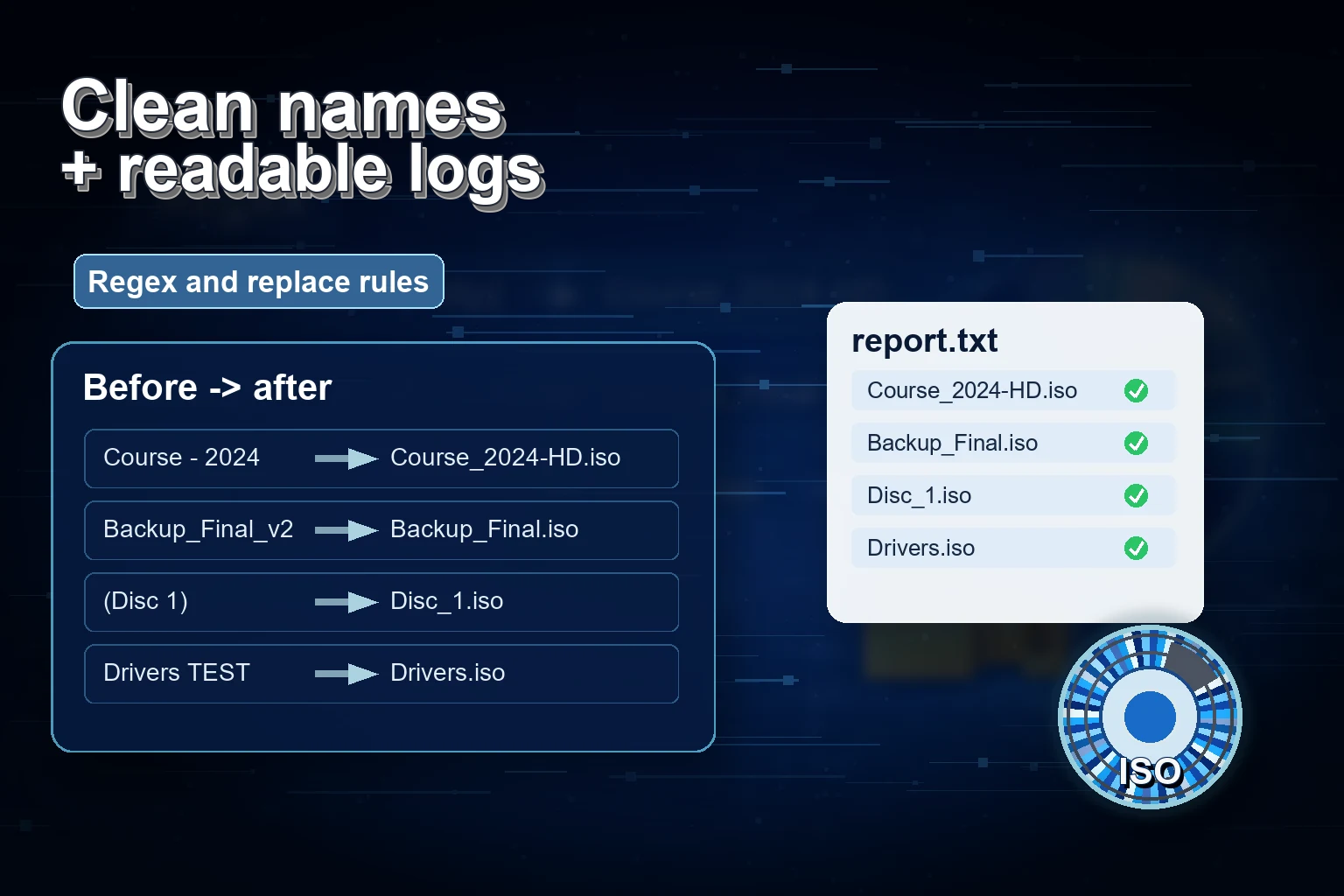
Command-line tools and scripts are excellent when you own the whole environment, know the exact folder structure, and want to wire the job into a larger process. But many folder-to-ISO jobs are not like that. They arrive from clients, coworkers, downloads, old archives, or a one-time cleanup project. The folder names vary. The output path changes. The person doing the work may not want to maintain a script.
Batch ISO Creator gives you a middle path: automation without writing code. You still control the workflow, but the repetitive parts are handled by the app.
What no-script automation means here
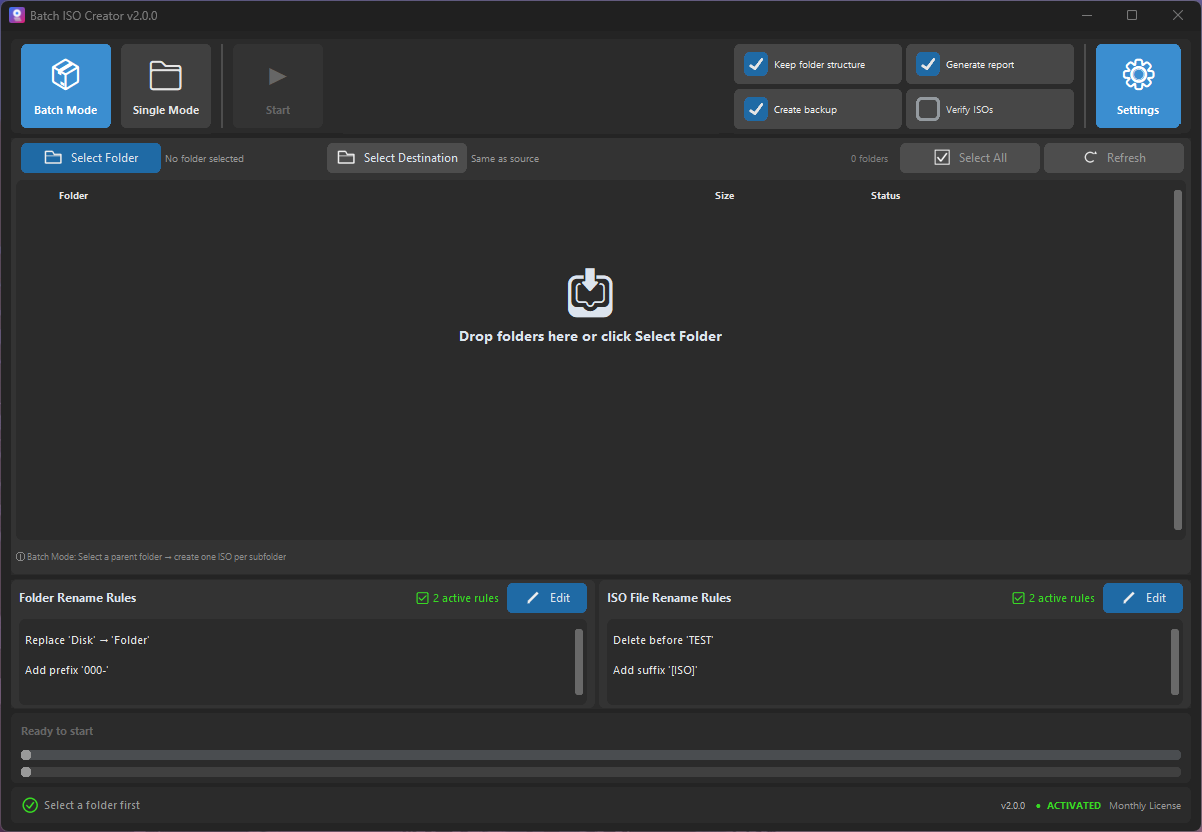
No-script does not mean no control. It means the control is exposed through the interface: Batch Mode, Folder Mode, drag and drop, select all/deselect all, destination options, ISO settings, quick toggles, rename rules, verification, and reports.
| Manual task | No-script Batch ISO Creator workflow |
|---|---|
| Repeat the same folder selection | Use Batch Mode with a parent folder or drag folders in |
| Manually rename every output file | Configure ISO rename rules before running the batch |
| Check whether every job finished | Use progress, status, and generated reports |
| Remember compatibility flags | Set ISO options such as UDF, Joliet, Rock Ridge, and ISO level |
| Rebuild the process later | Use the same app workflow for the next folder set |
A realistic example
Imagine you receive a folder called D:\Client Delivery with a dozen subfolders. Each subfolder needs to become one ISO file. The names need to be uppercase with underscores. The ISO files need to go to D:\Client ISO Output. You want a report because the output is going to someone else.
- Open Batch Mode. Use the parent folder or drag the folders into the app.
- Choose the destination. Enable a custom destination if you want the output separated from source material.
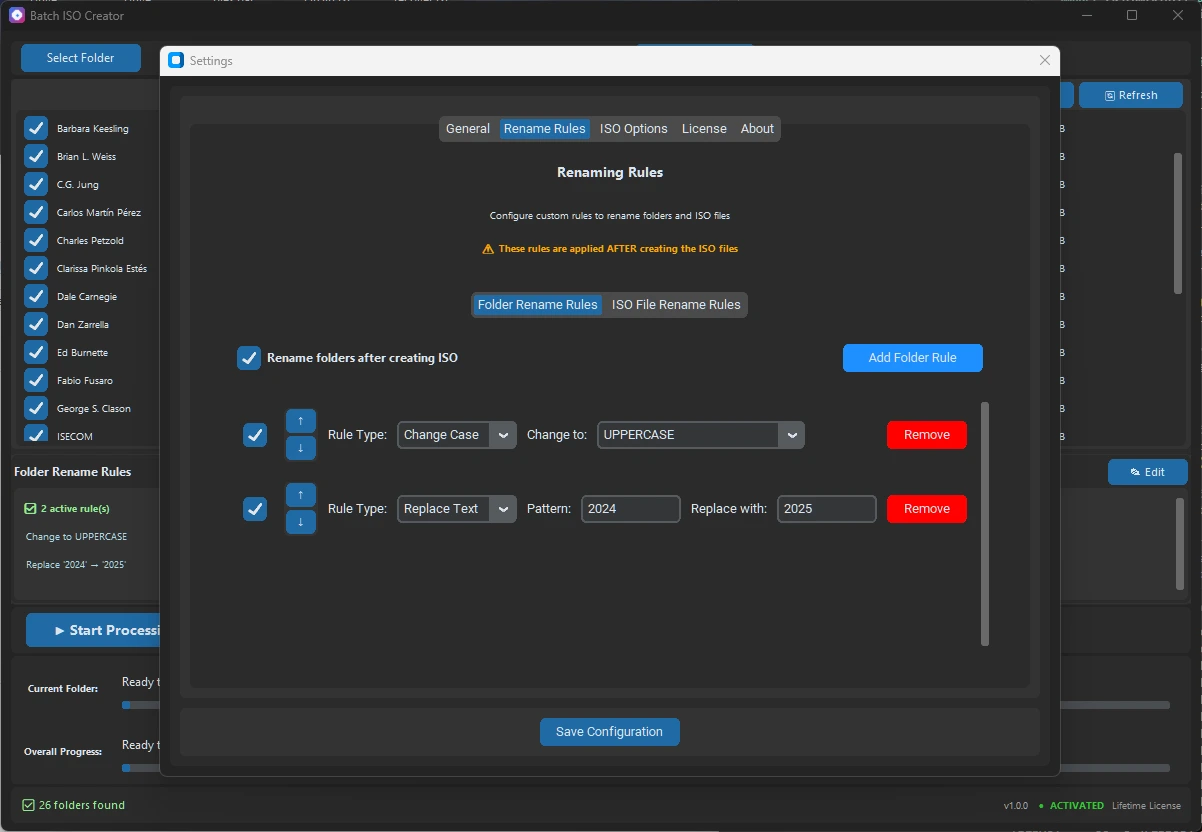
- Set naming rules. Replace spaces and dots with underscores, remove temporary labels, then change case to uppercase.
- Check quick toggles. Enable report generation and verification if the job deserves extra confidence.
- Run a small sample. Process one or two folders first, mount an ISO with Windows, and confirm the structure.
- Run the full batch. Let the app handle the repeated ISO creation and naming steps.
When a script is still better
There are times when scripting wins. If the ISO job is part of CI, needs to run unattended on a server, or must integrate with a bigger deployment system, a command-line workflow may be the better fit. Batch ISO Creator is strongest when a human is operating the folder packaging process and wants it to be faster, cleaner, and less error-prone.
That honesty is part of the sales argument. You are not buying the app because scripts are bad. You are buying it because this particular job does not need another fragile script.
Where rename rules replace small scripts
Many folder automation scripts are really filename cleanup scripts in disguise. They replace spaces, remove tags, add a client prefix, normalize case, or strip a build number. Batch ISO Creator handles those needs directly through rules. The rule order is visible, each rule can be enabled or disabled, and the setup is easier for non-developers to understand.
Automate the Repetition, Keep the Control
Use Batch ISO Creator when you want batch folder-to-ISO output, clean naming, and reports without writing a script for every new folder set.
FAQ
Can I batch create ISO files without writing scripts?
Yes. Batch ISO Creator provides a Windows GUI workflow for selecting folders, applying settings, and creating ISO files in batch.
Is this meant to replace command-line tools?
No. It is for users who want a repeatable GUI workflow instead of writing and maintaining their own scripts.
Can rename rules replace small cleanup scripts?
For many naming tasks, yes. Replace, remove, regex, case, prefix, suffix, insert, and delete rules cover common cleanup patterns.