ISO Creation Checklist for Client Deliverables
Client deliverables should feel boringly reliable. The folder structure should make sense, the ISO name should be clear, and the output should be easy to verify.
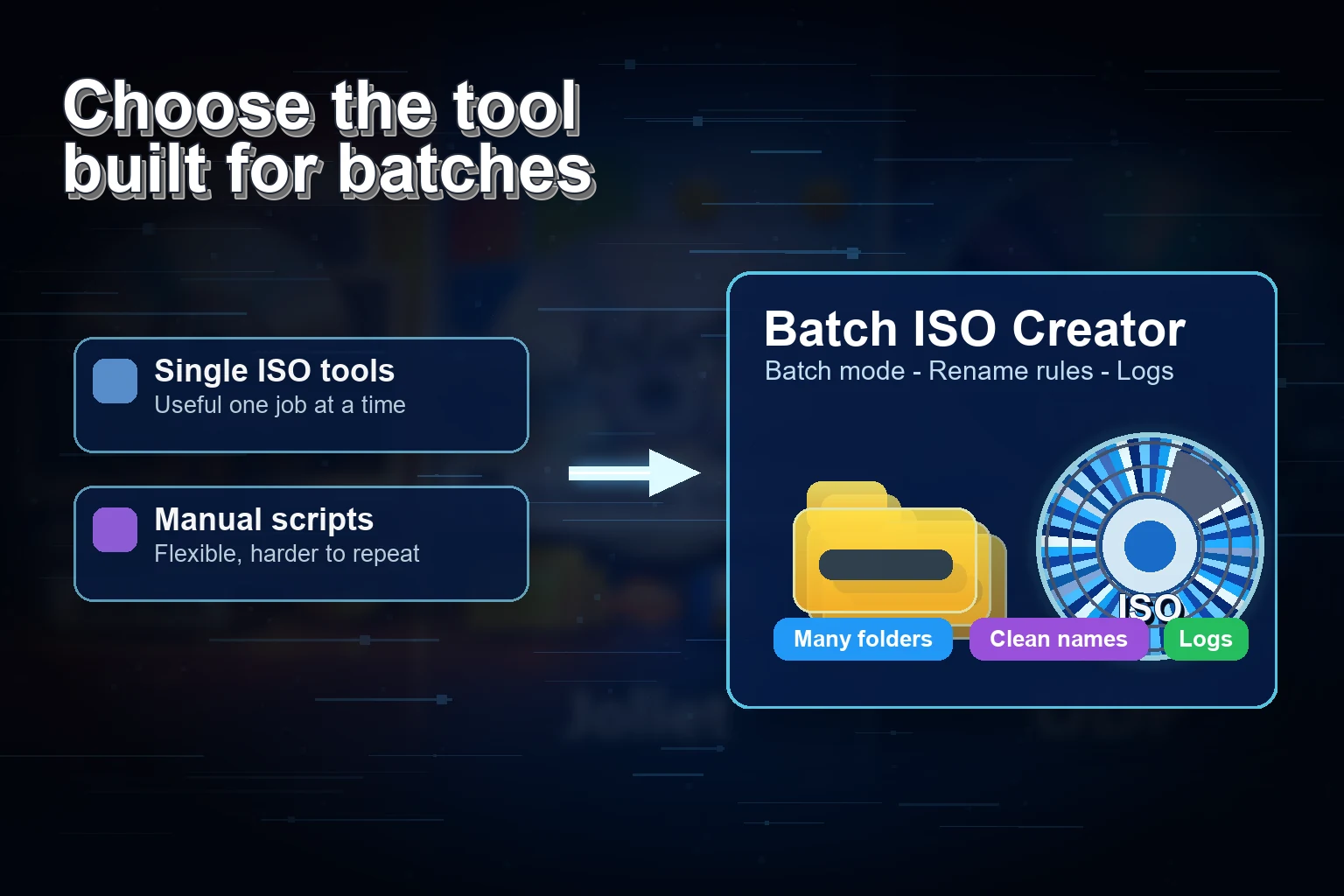
When an ISO file is a client deliverable, small details become visible. A vague name looks careless. A missing folder creates support emails. A long filename warning delays handoff. A forgotten report makes troubleshooting harder. The goal is not to make the workflow fancy. The goal is to make it clean.
This checklist is written for the practical moment before you deliver: you have folders, you need ISO files, and you want the result to look intentional.
1. Confirm the source folder is self-contained
Open the folder and ask whether the client could understand it without your explanation. Keep required files inside the folder. Remove unrelated drafts, caches, downloads, and duplicate ZIP files unless they are part of the deliverable.
| Check | Why it matters | Batch ISO Creator connection |
|---|---|---|
| Top-level structure | The mounted ISO should be easy to browse | Create the ISO from the prepared folder |
| Long names | Long paths can create compatibility issues | Use rename rules and ISO options like Joliet Long when appropriate |
| Temporary files | Clients should not receive build clutter | Clean source folders before the batch |
| Version labels | Deliverables need traceability | Add version prefixes or suffixes to ISO names |
2. Decide the client naming convention
Do not leave naming to chance. Choose a convention before creating the ISO. A good pattern includes client, project, version or date, and package type if relevant.
CLIENT_PROJECT_VERSION_DATE.iso
ACME_ONBOARDING_KIT_2026_05.iso
NOVA_DRIVER_PACK_T14_2026_05_22.iso
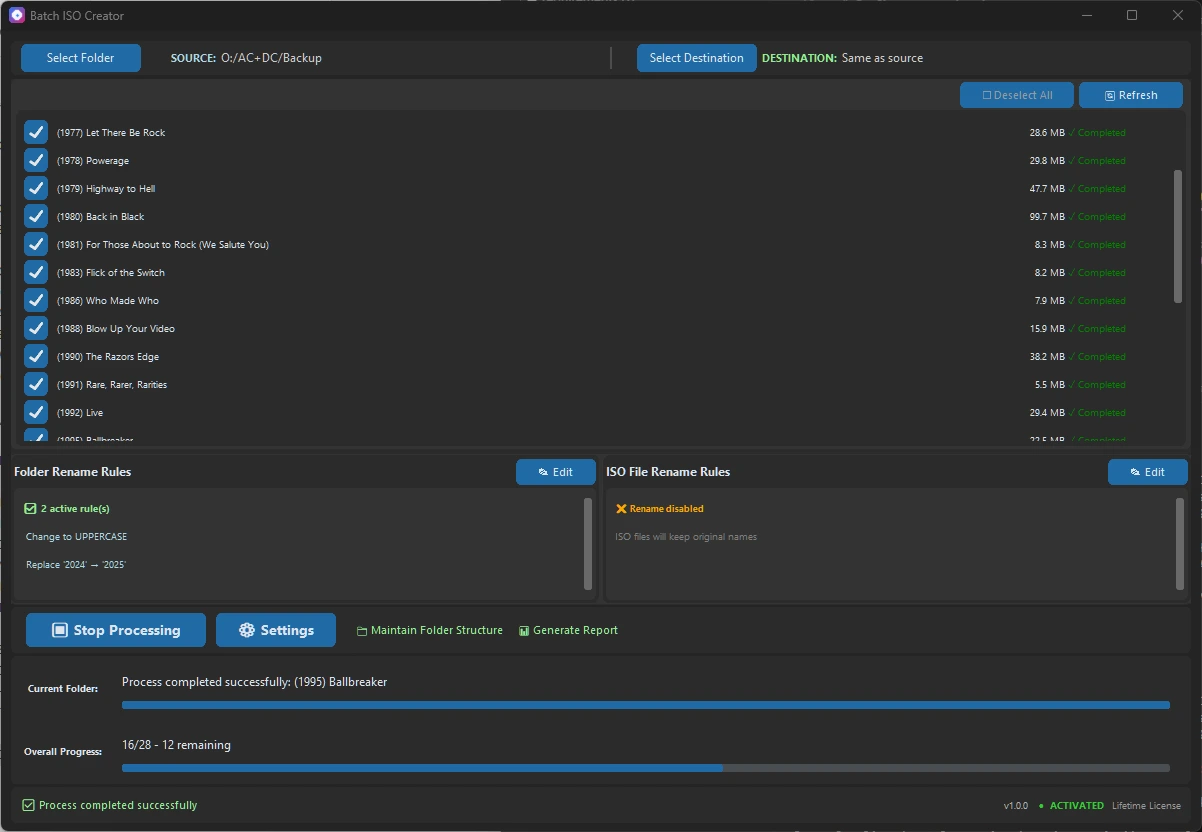
Batch ISO Creator rename rules can apply that convention with prefix, suffix, replace, remove, regex, and case rules. This is especially useful when creating multiple client deliverables in one batch.
3. Choose destination behavior
Use a dedicated output folder for client ISO files. If you maintain folder structure in the destination, the output can be easier to review folder by folder. If you create ISOs directly in the destination, the final folder is simpler for upload or handoff.
4. Set compatibility options deliberately
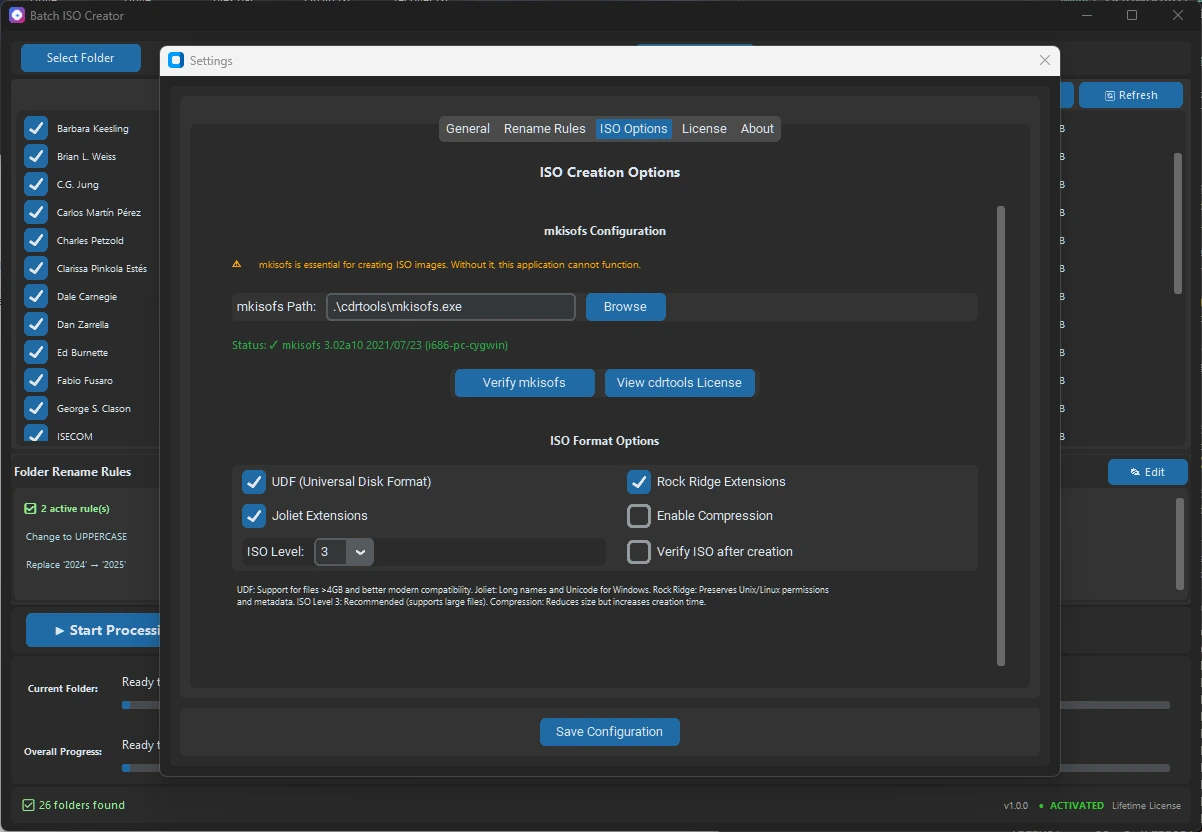
If the client uses Windows, Joliet support is usually important for long names and Unicode. If large files are included, UDF matters. If the material may be used on Unix-like systems, Rock Ridge can help preserve metadata. Verification after creation is slower, but for client work it is often worth the extra time.
5. Run a sample before the full batch
For a large batch, create one or two sample ISO files first. Mount them with Windows. Confirm the files are present, the folder structure is correct, and the ISO filenames match the agreed convention. Then run the full batch.
6. Keep the report with the deliverable record
Reports are easy to underestimate until a question comes back. A report helps you know which folder was processed, what settings were used, and whether the run finished cleanly. For client work, that record can save time later.
Why this is a gentle sales workflow
Clients do not care that you clicked fewer buttons. They care that the package opens, the names make sense, and the delivery looks professional. Batch ISO Creator helps with the parts that produce that feeling: batch output, naming rules, progress, verification, and reports.
Create Client ISOs with Less Last-Minute Cleanup
Use Batch ISO Creator when client folder deliverables need clean ISO names, consistent batch output, verification options, and reports.
FAQ
What should I check before creating a client ISO?
Check folder structure, filenames, destination path, ISO compatibility options, rename rules, and whether reporting or verification should be enabled.
Can Batch ISO Creator help make client ISO names consistent?
Yes. Rename rules can enforce case, replacements, prefixes, suffixes, regex cleanup, and other naming patterns.
Should I keep a report for client ISO work?
Yes. A report gives you a simple record of the batch, settings, output paths, and processing results.