Bulk Archive Project Folders as ISO Images
Old project folders are easier to trust when they are packaged, named consistently, and documented. Batch ISO Creator helps make that practical.
Project folders grow slowly and then become a problem all at once. A client job ends. A release closes. A design folder is no longer active. A training set is replaced by a new version. Suddenly you have a file share full of folders that should be preserved, but not left as loose working directories forever.
ISO images can be a practical archive format because they keep a folder tree in a single mountable file. Batch ISO Creator makes that approach easier when you need to archive many folders at once.
When ISO archiving makes sense
| Archive situation | Why ISO can help | What to watch |
|---|---|---|
| Completed client folders | One file per client/project is easier to store | Use clear client and date naming |
| Software release history | Each release becomes a mountable snapshot | Preserve version numbers in filenames |
| Training material | Course modules can be reopened later | Use module numbers that sort correctly |
| Legacy tool collections | Tools, docs, and notes stay together | Check long filenames and large files |
Start with an archive parent folder
Create a staging area before running the batch. Put only the folders that should become ISO files into that parent folder. Avoid mixing active work, existing ISO output, temporary downloads, and unrelated files in the same source directory.
D:\Archive Staging
|-- Client Apollo 2024
|-- Client Beacon 2025
|-- Website Redesign Final
|-- Legacy Tools Pack
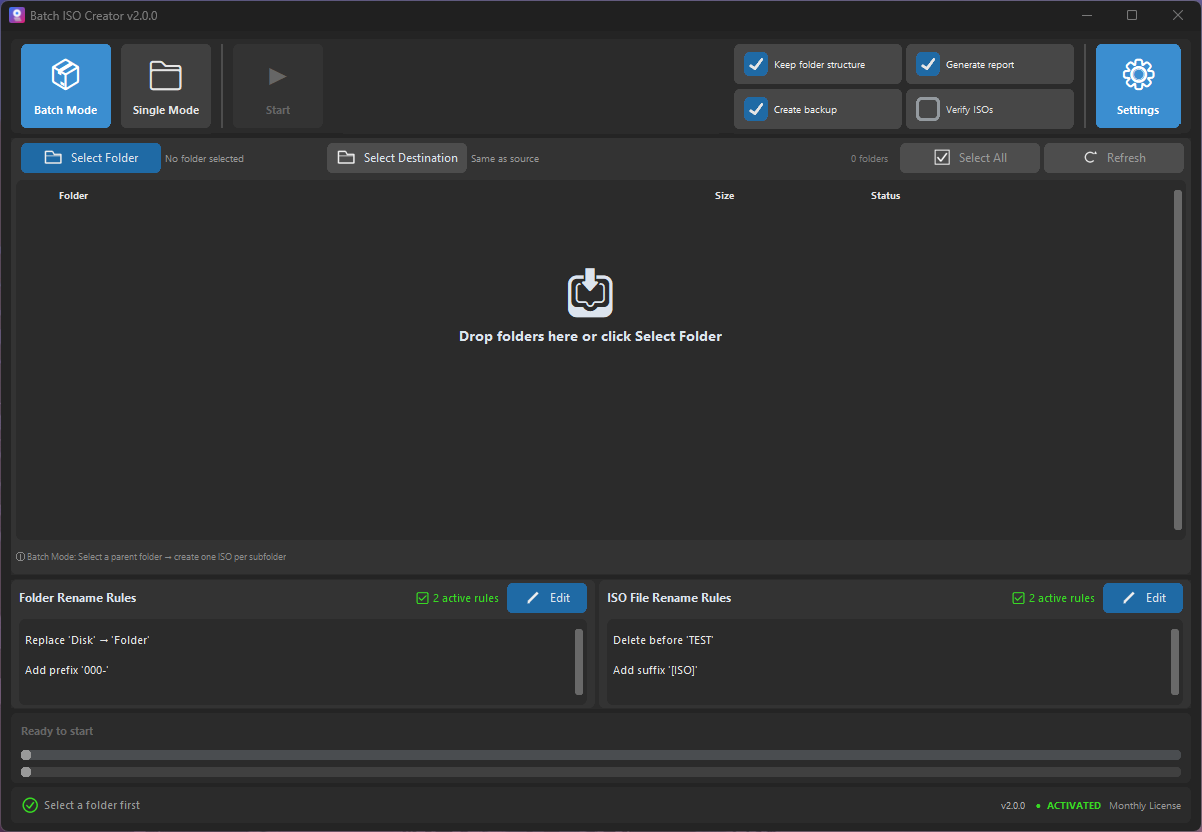
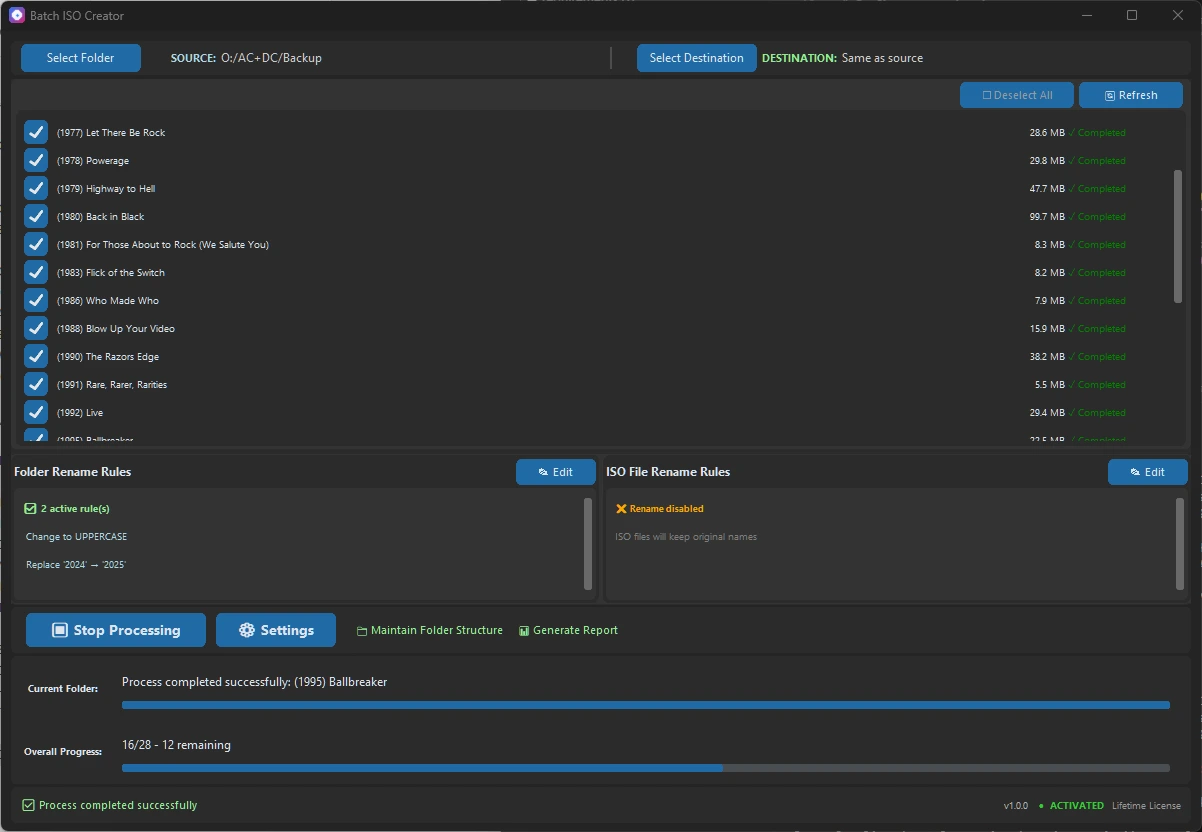
Then use Batch Mode to convert each selected folder into a separate ISO file.
Use naming rules like archive metadata
An archive filename is a tiny database record. It should carry enough information that someone can understand it without opening the ISO. Batch ISO Creator rename rules help apply that discipline across a folder set.
| Goal | Rule idea | Example output |
|---|---|---|
| Add retention context | Add suffix _ARCHIVE | CLIENT_APOLLO_2024_ARCHIVE.iso |
| Group by client | Add prefix CLIENT_ | CLIENT_BEACON_2025.iso |
| Normalize separators | Replace spaces and dots with underscores | WEBSITE_REDESIGN_FINAL.iso |
| Standardize case | Change Case to uppercase | LEGACY_TOOLS_PACK.iso |
Destination structure: direct or nested?
Batch ISO Creator lets you maintain folder structure in the destination or create ISO files directly in the destination folder. Direct output is clean when the destination is only for final ISO files. Maintained structure is useful when you want each output folder to contain the ISO and related report material.
For long-term archives, choose the option that will be easiest to understand when nobody remembers the original project.
Verification and reports
Archive work rewards patience. Verification after ISO creation takes extra time, but it is worth considering for important folders. Reports are also useful because they capture the result of the run. When someone asks whether a folder was included, you have more than a vague memory.
Archive Folder Libraries Without the Manual Loop
Use Batch ISO Creator to turn completed folders into clean ISO archives with batch processing, rename rules, verification options, and reports.
FAQ
Is ISO a good format for archiving project folders?
It can be. ISO is useful when you want a mountable package that preserves folder structure and can be stored as a single file.
Can Batch ISO Creator process hundreds of folders?
The app has no artificial folder limit. Practical limits are disk space, system memory, and the size of the folders being processed.
Should I enable verification for archives?
Verification takes longer, but it is worth considering when the ISO files are long-term records or client deliverables.