How to Batch Convert Folders to ISO Files in Windows (Step-by-Step Guide)
Step-by-step batch folder-to-ISO conversion on Windows 10/11 with rename rules for consistent output.

If you need to convert many folders to ISO on Windows 10/11 and want clean, consistent filenames, doing it one by one is not ideal. This step-by-step guide shows how to batch convert folders and apply rename rules so every ISO is standardized.
Batch ISO Creator is built for exactly that.
🔧 What You'll Need
✅ A Windows PC (Windows 10 or 11)
✅ Batch ISO Creator installed
✅ Folders you want to convert to ISO files
🚀 Step-by-Step: Convert Folders to ISO in Bulk
1. Download and Install Batch ISO Creator
Go to batch-iso-creator.com and install the app. It's lightweight, fast, and works offline (internet is only required to validate the license).
2. Choose Source and Destination Folders
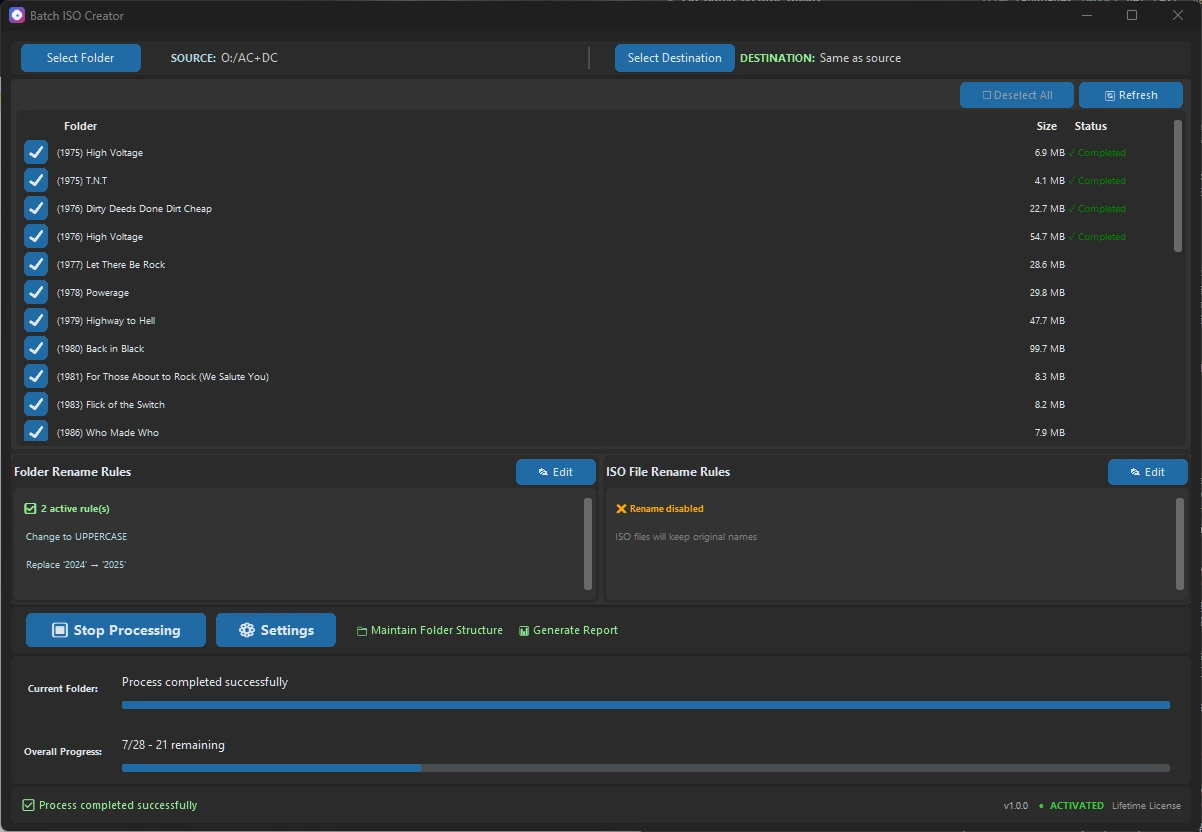
Open the app and use the built-in "Select Source Folder" and "Select Destination Folder" buttons. Each subfolder inside the source will be converted into a separate ISO file.
3. Optional Settings
You can customize a few things:
✅ Rename logic: standardize ISO filenames using case formatting and basic rules
✅ Keep folder structure in destination: choose whether each ISO file is saved inside its original folder path within the destination, or all ISOs go directly into the destination folder
✅ ISO file system options: choose ISO 9660, Joliet, or Rock Ridge for compatibility and long filenames
✅ Generate report: get a summary of all processed folders and ISO results
4. Click "Start Processing"
Once you're ready, click the Start Processing button. The app will begin converting each folder to an ISO file and save them in the destination folder. A progress bar will show the status of each step.
⚙️ Why Use Batch ISO Creator?
🧠 No command-line required: no need to deal with tools like
mkisofs⏱️ Fast and efficient: process dozens of folders in one run
🗂️ Flexible structure: choose to keep or flatten folder layouts
🧾 Logs and reports: audit each ISO and track errors per folder
🖥️ Made for Windows: native experience with a clean and simple interface
💡 Pro Tip: Rename and Report Features
Use the rename settings to remove unwanted characters or apply consistent formatting (like all lowercase or replacing spaces).
The report file helps you track what was converted, what succeeded, and any errors—perfect for documentation or verification.
🛒 Where to Get It
Batch ISO Creator is available now at batch-iso-creator.com
Monthly license – $0.99
Annual license – $5.99
Lifetime license – $19.99
Ready to streamline your workflow?
Experience the power of batch ISO creation with Batch ISO Creator.
Download Now